Reverse Proxy using Nginx

What is Nginx and what is Reverse Proxy?
Nginx: Nginx (pronounced "engine X") is software that acts like a traffic cop for web servers. Its main job is to efficiently handle requests from users (like web browsers) and direct those requests to the appropriate web server that can fulfill them. Think of Nginx as a smart assistant that helps manage and distribute the flow of web traffic.
Reverse Proxy: Now, let's talk about a reverse proxy. Imagine you are in a restaurant, and instead of going directly to the kitchen to place your order, you tell your order to a waiter. The waiter then takes your order to the kitchen, returns the food when it's ready, and serves it to you. In this scenario, the waiter is like a reverse proxy.
In the world of websites and the internet, a reverse proxy is like that waiter. It sits between users (like you with your web browser) and the actual web servers that host websites. When you request a webpage, the reverse proxy takes that request, goes to the appropriate web server, gets the webpage, and then brings it back to you.
So, when we say "Nginx as a reverse proxy," it means using Nginx as that smart assistant or waiter. Nginx helps manage the flow of web traffic, making sure that requests from users get to the right place (the correct web server) and that the responses (web pages) get back to the users efficiently.
To sum up, Nginx is like a traffic cop for web servers, and a reverse proxy is like a helpful intermediary that ensures your requests get to the right place and brings back the results for you.
Deep Dive with a Project
Let us create a simple Ec2 Instance with Ubuntu free tier. In this case, I named it "nginx-webserver".
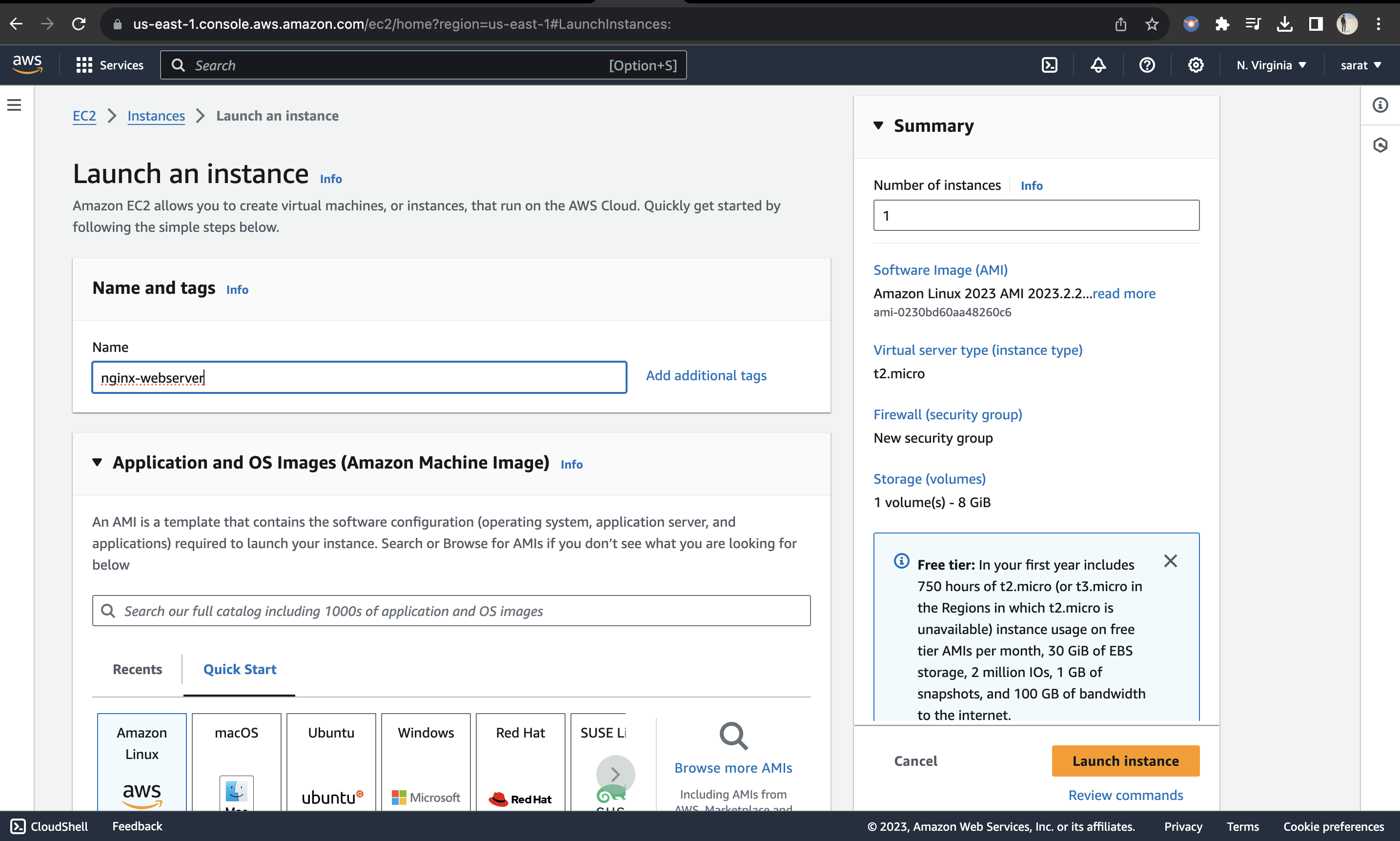
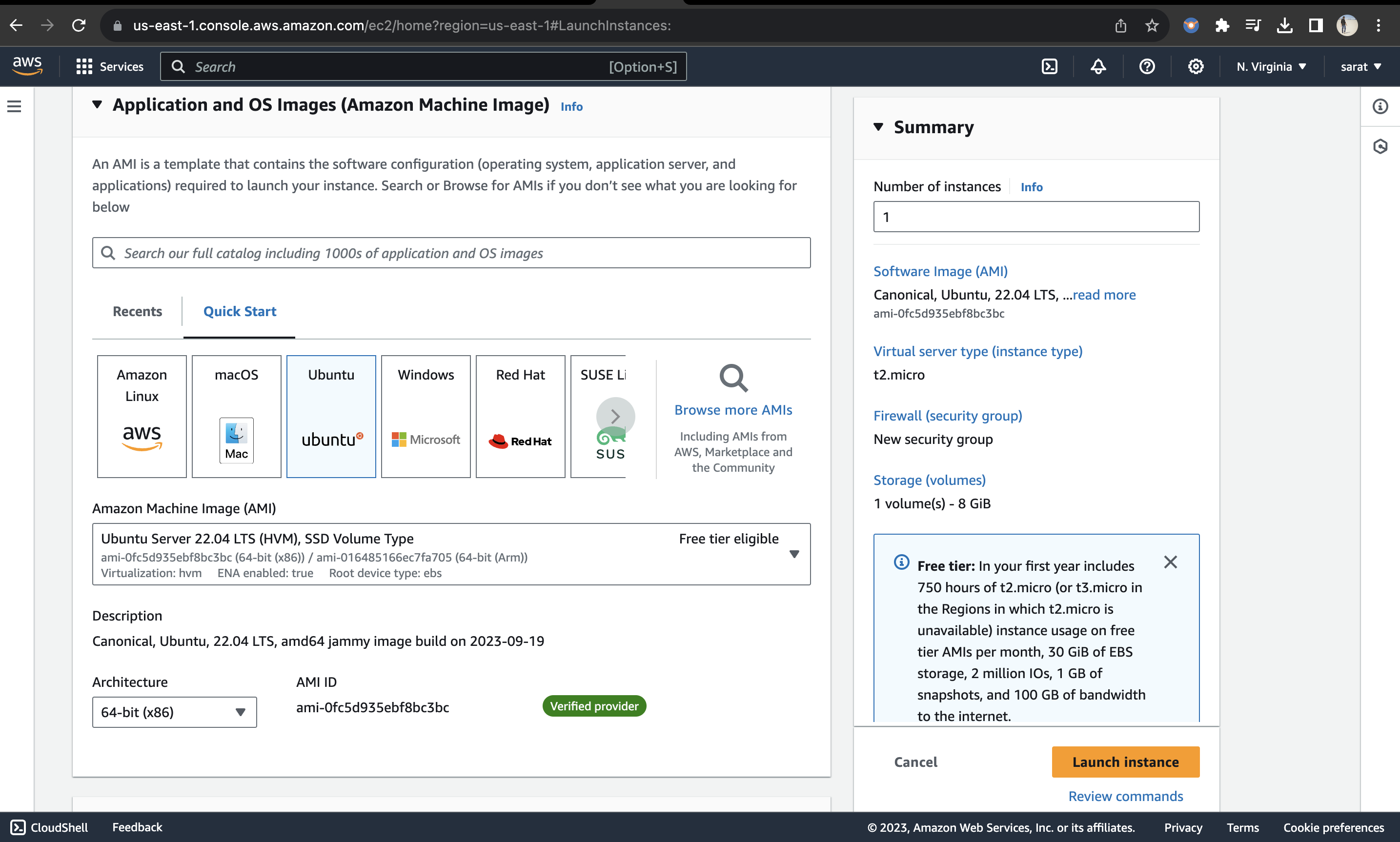
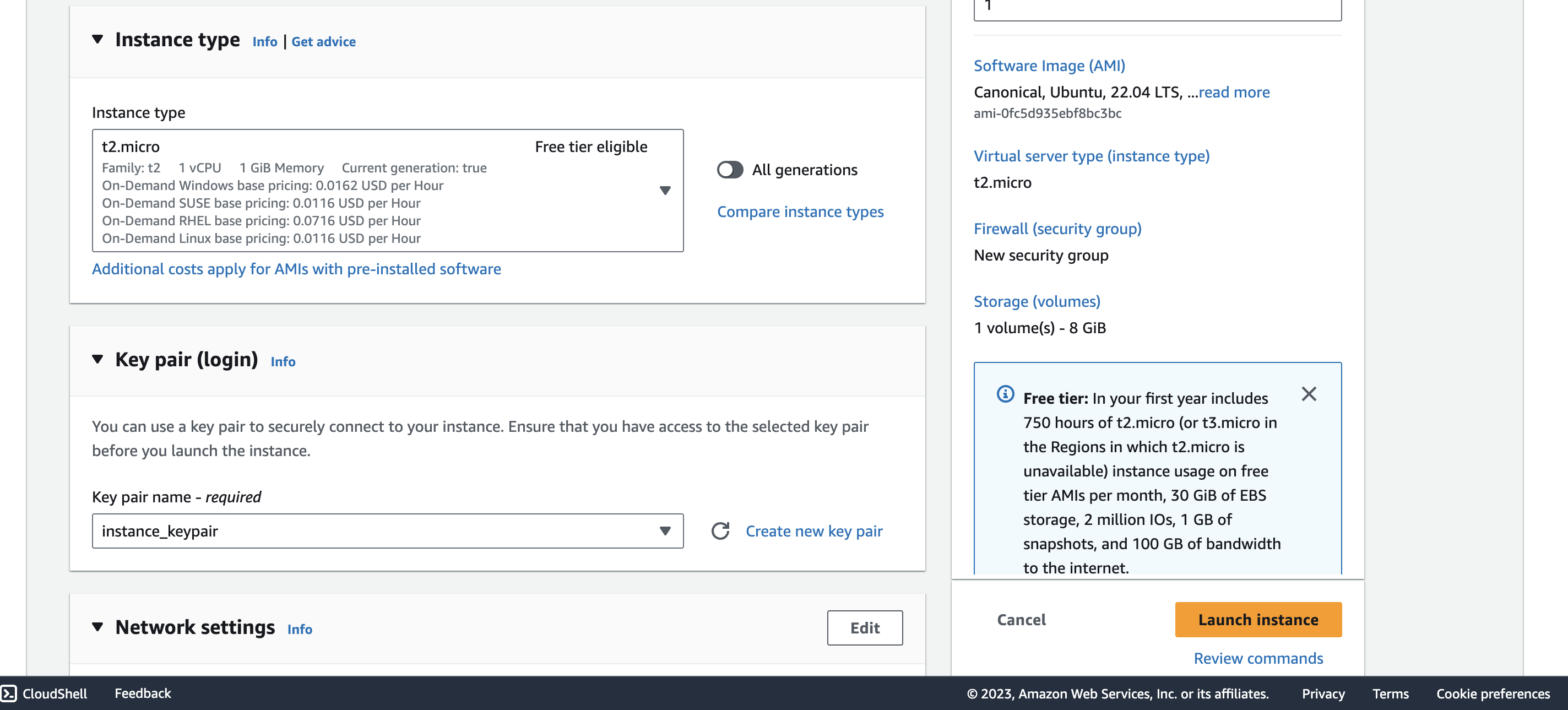
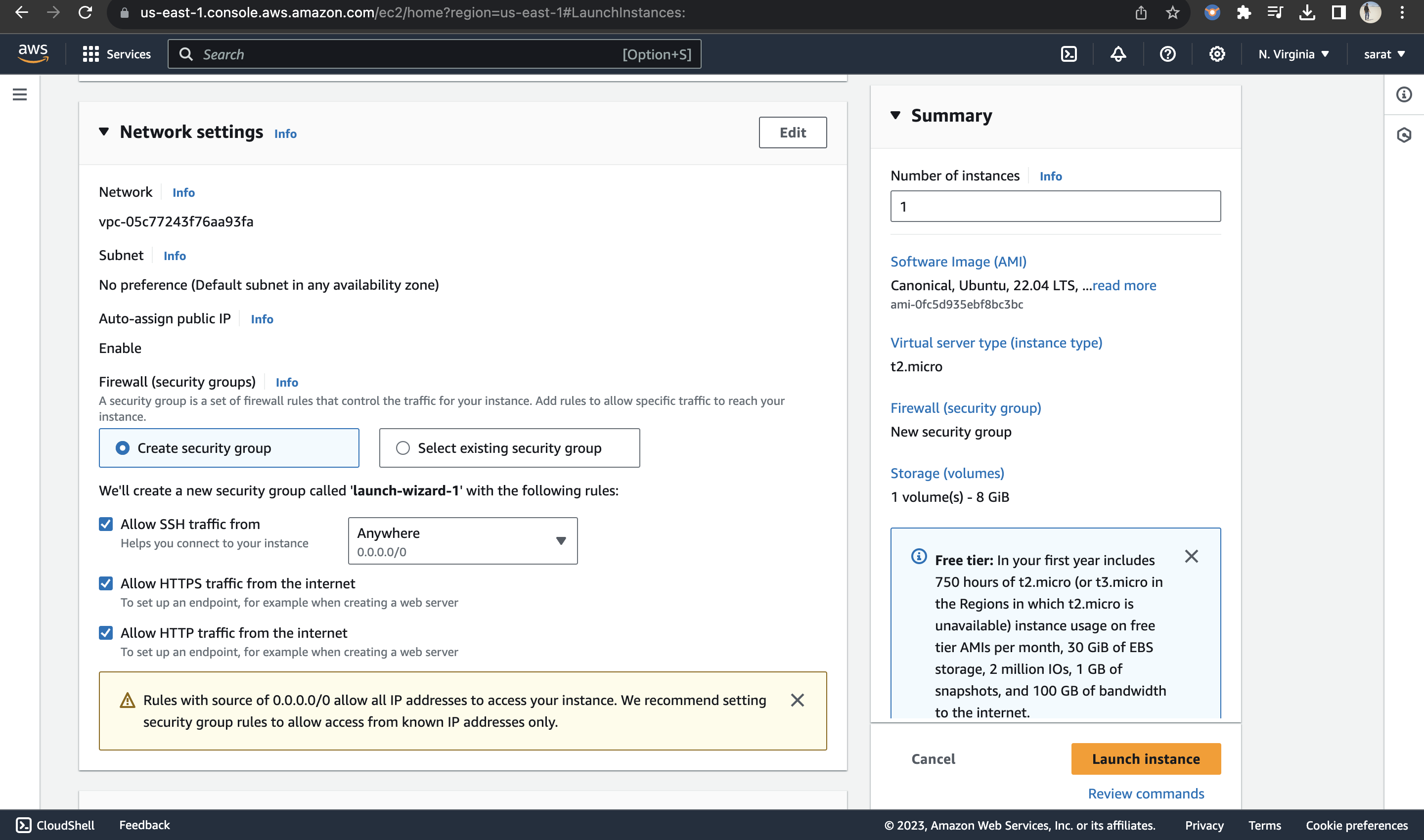
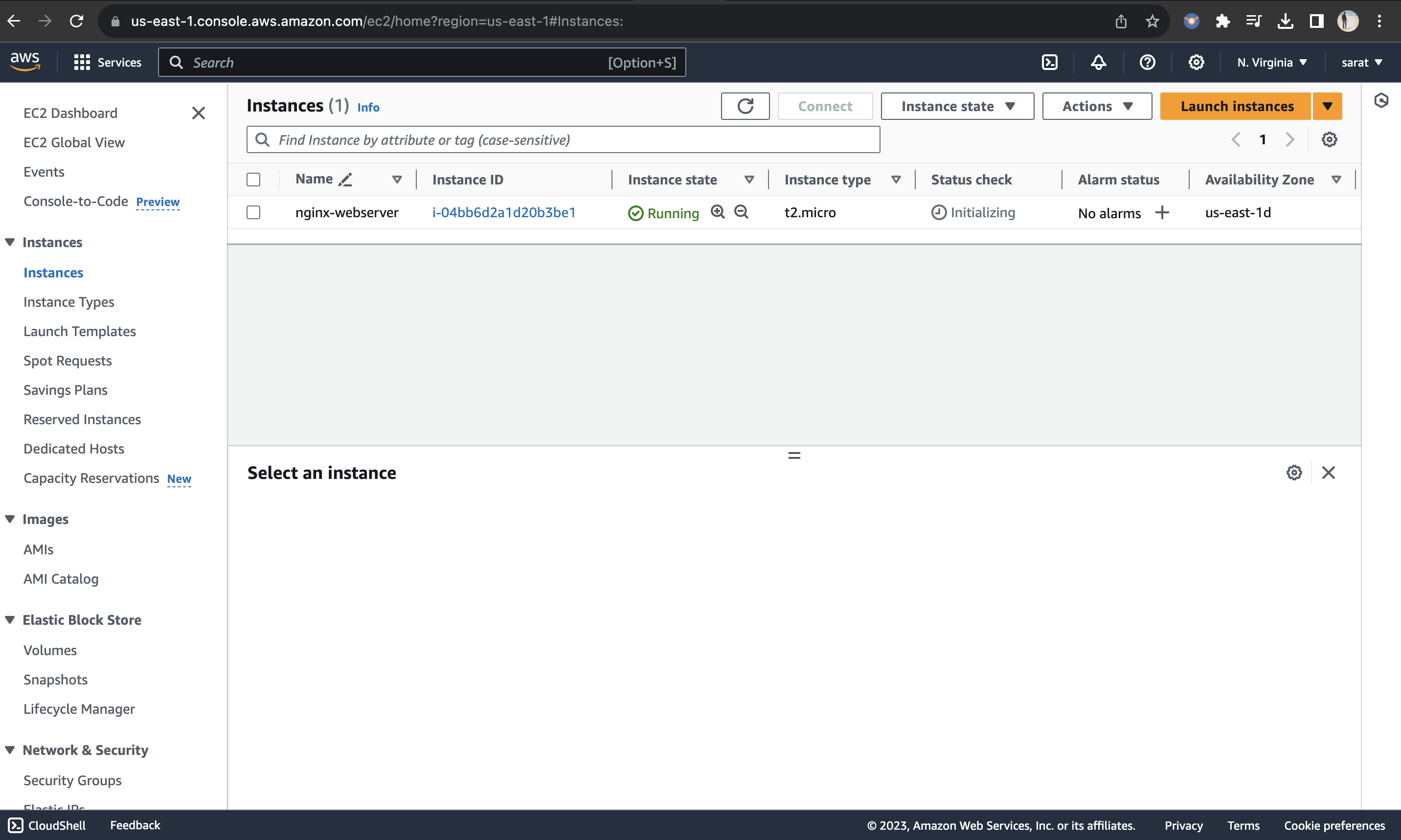
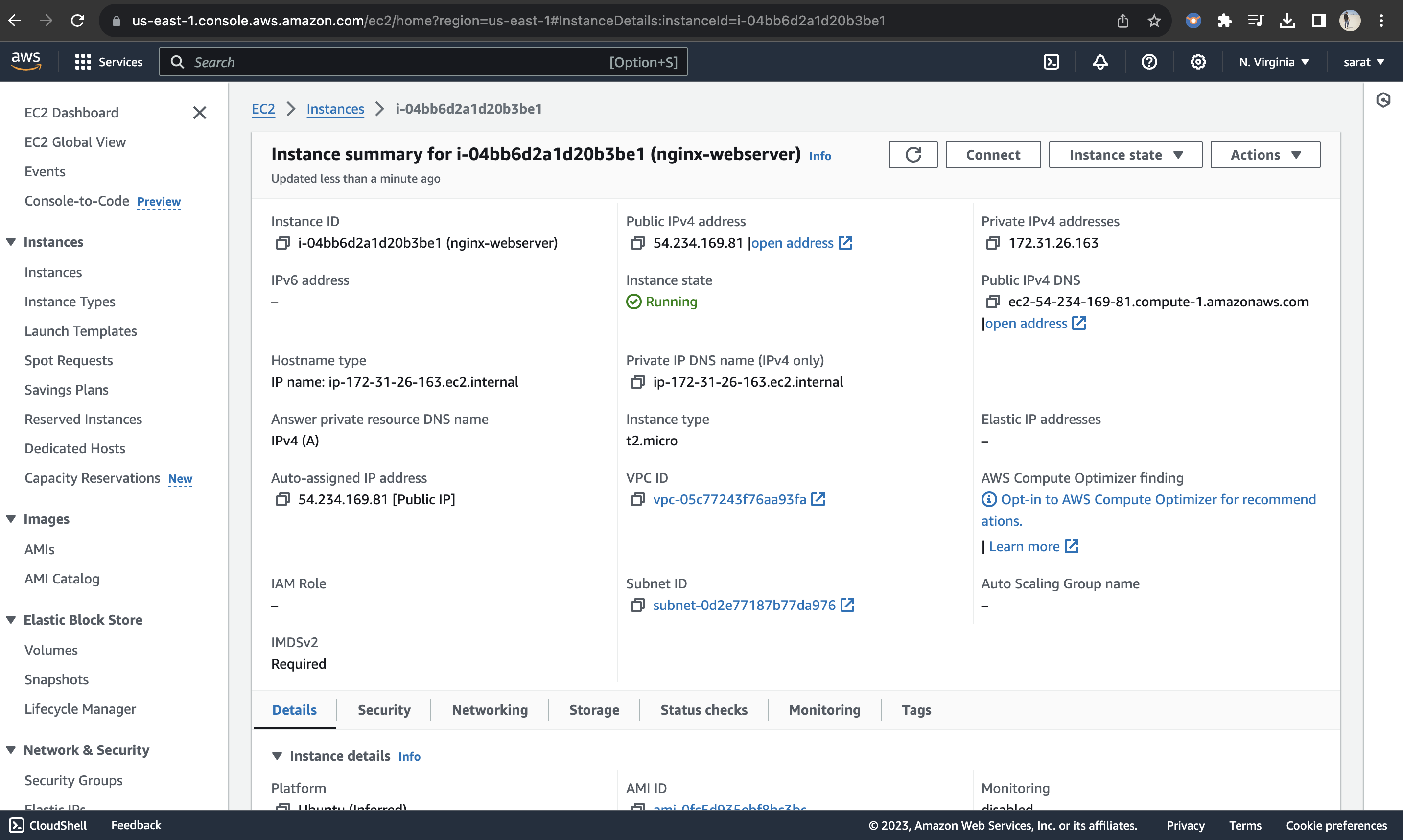
Now that the Instance is ready, up and running, let us ssh through the terminal using the following command:
ssh -i keypair.pem ubunut@publicip
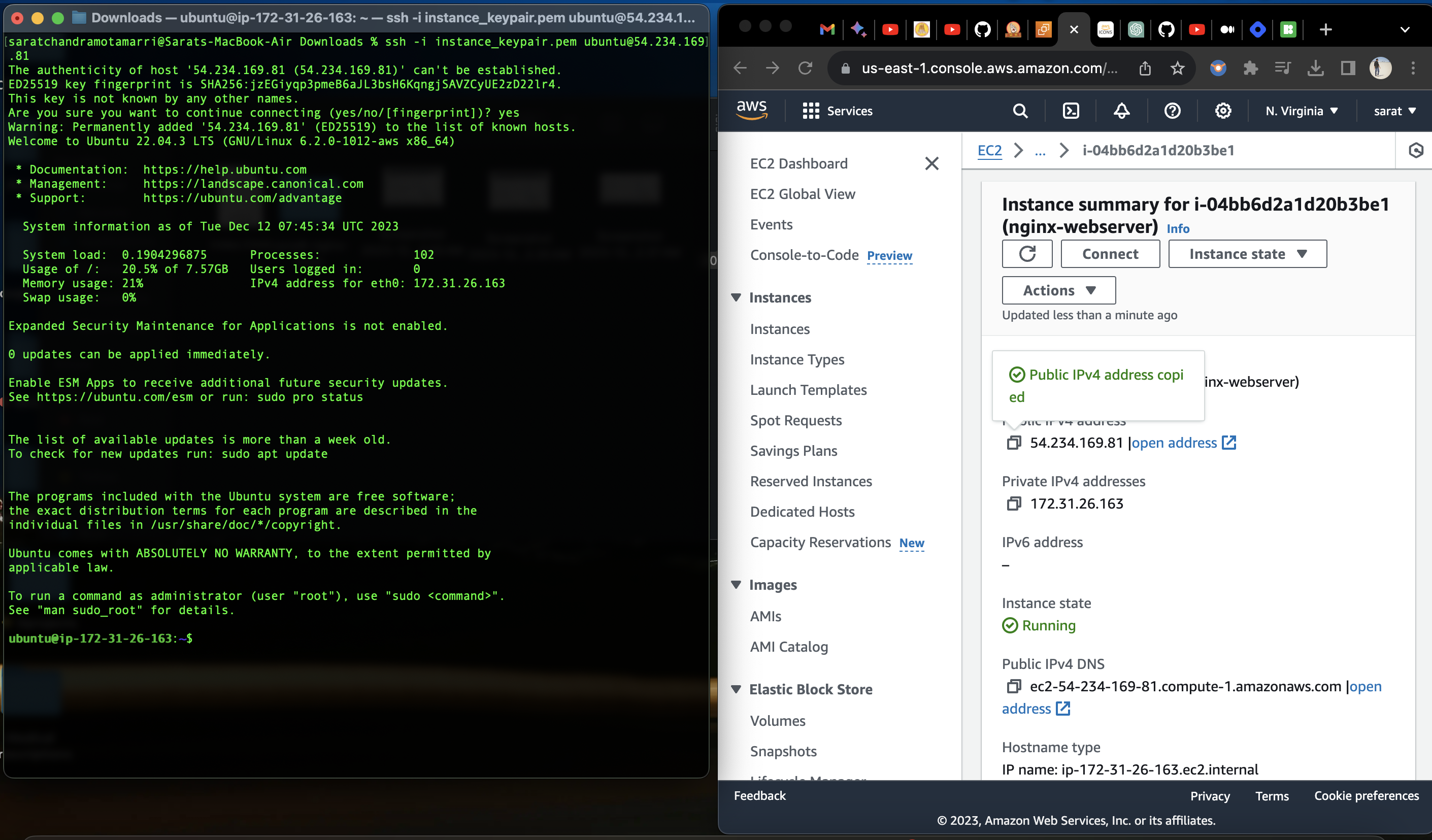
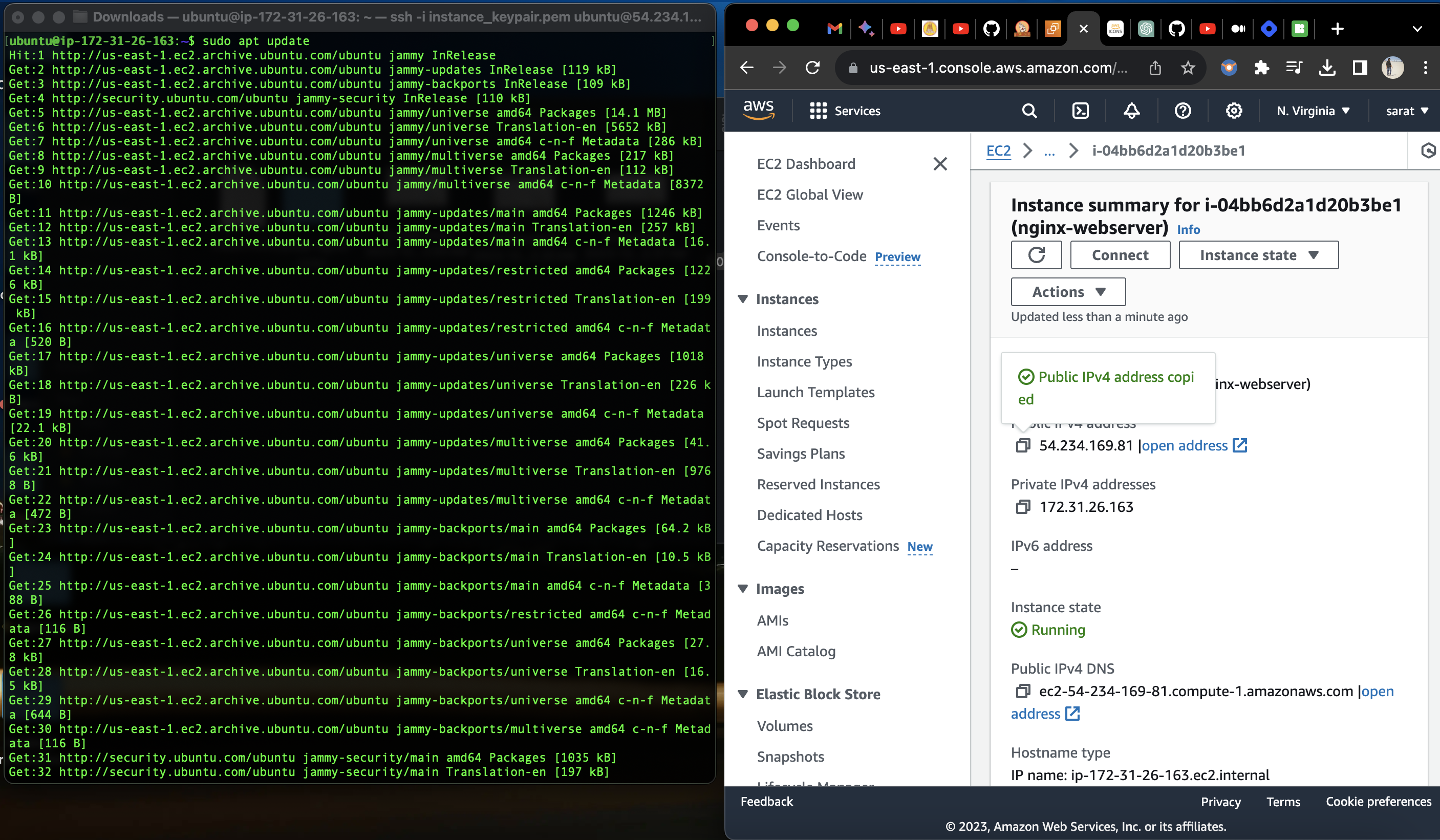
Now that I was able to log into the instance, let us update the package manager by the following command:
sudo apt update
Now let us install "Nginx" by the following command:
sudo apt install nginx
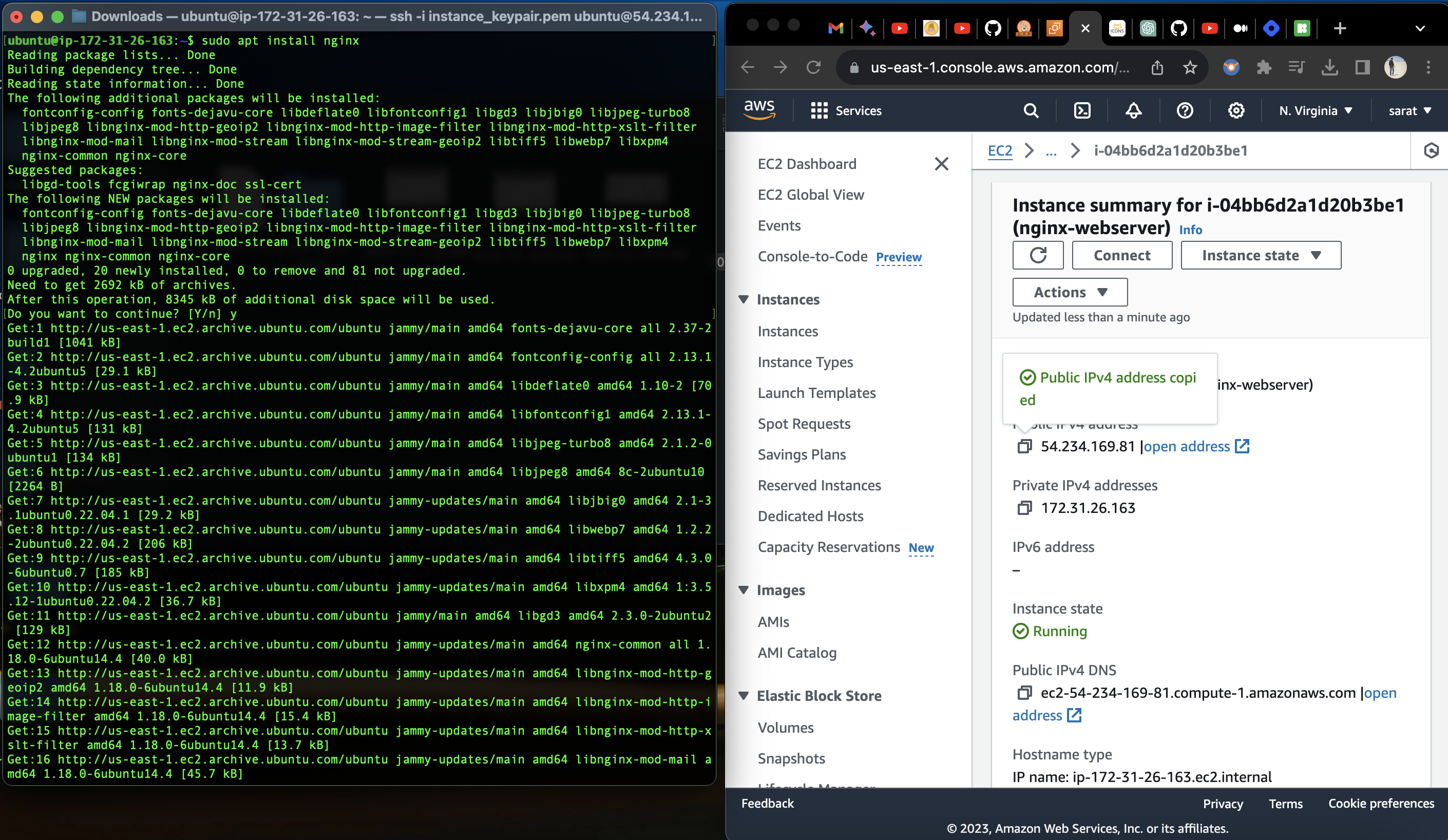
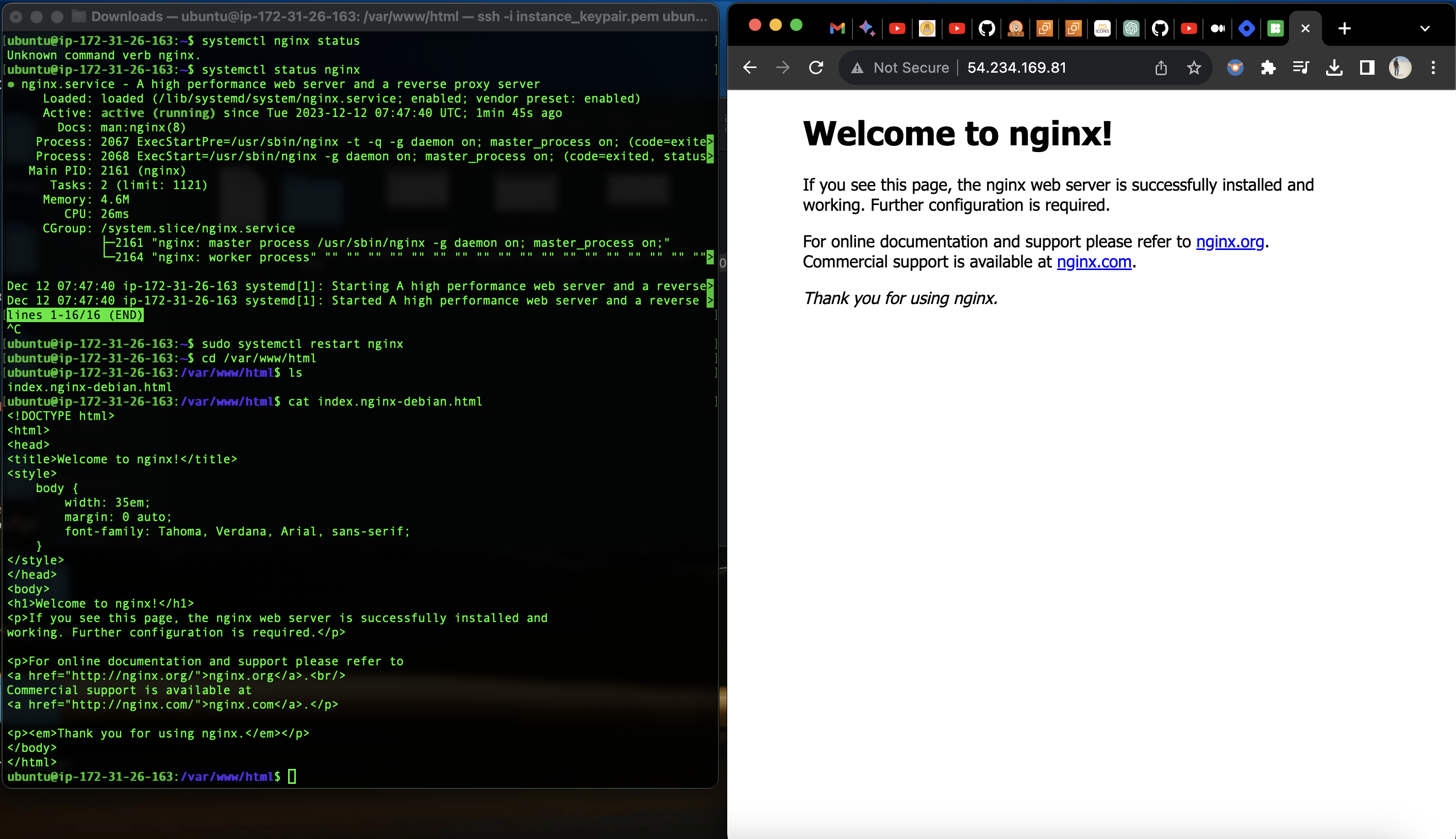
Now that nginx is installed, let us check the status by the following command:
systemctl nginx status
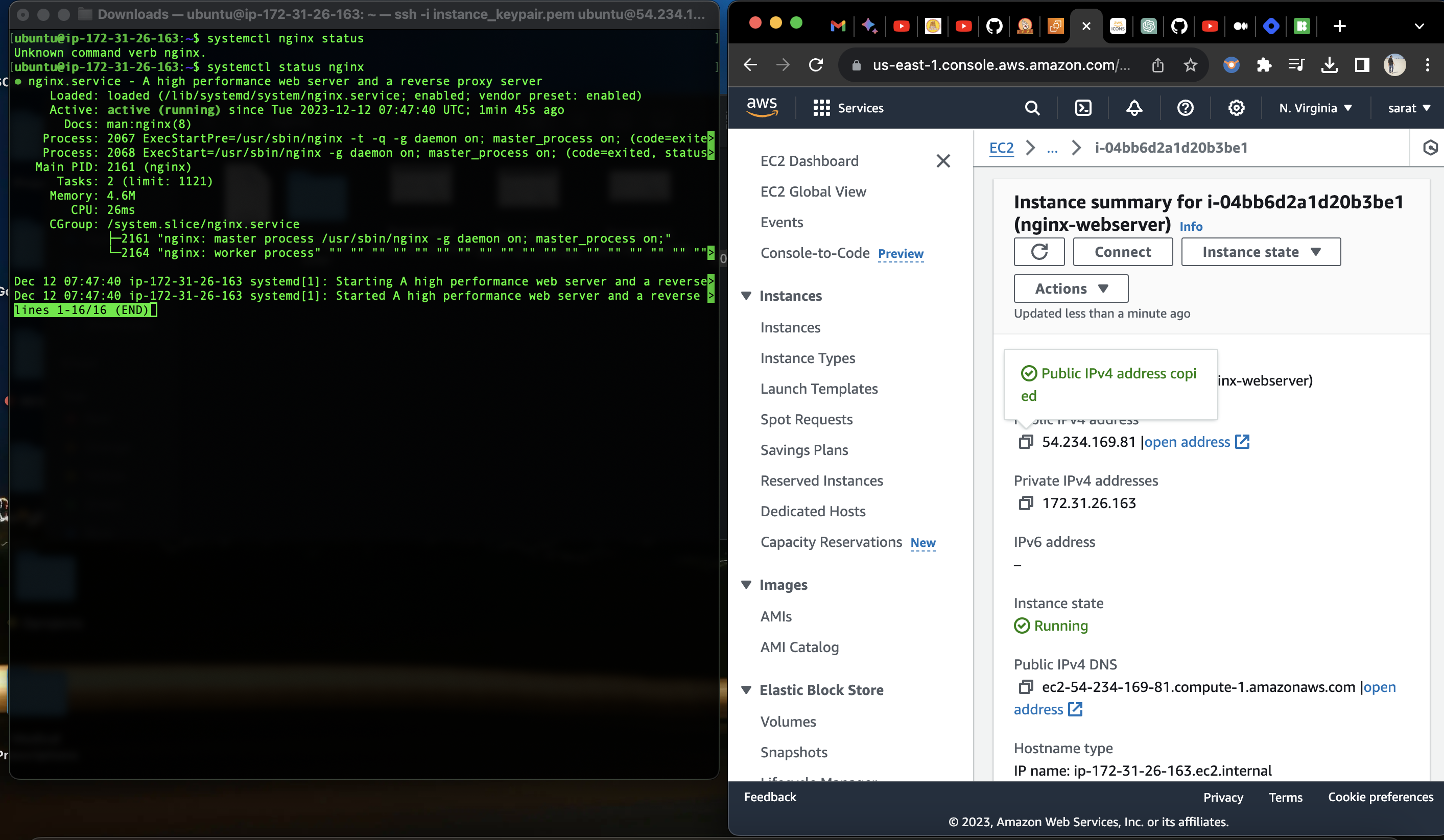
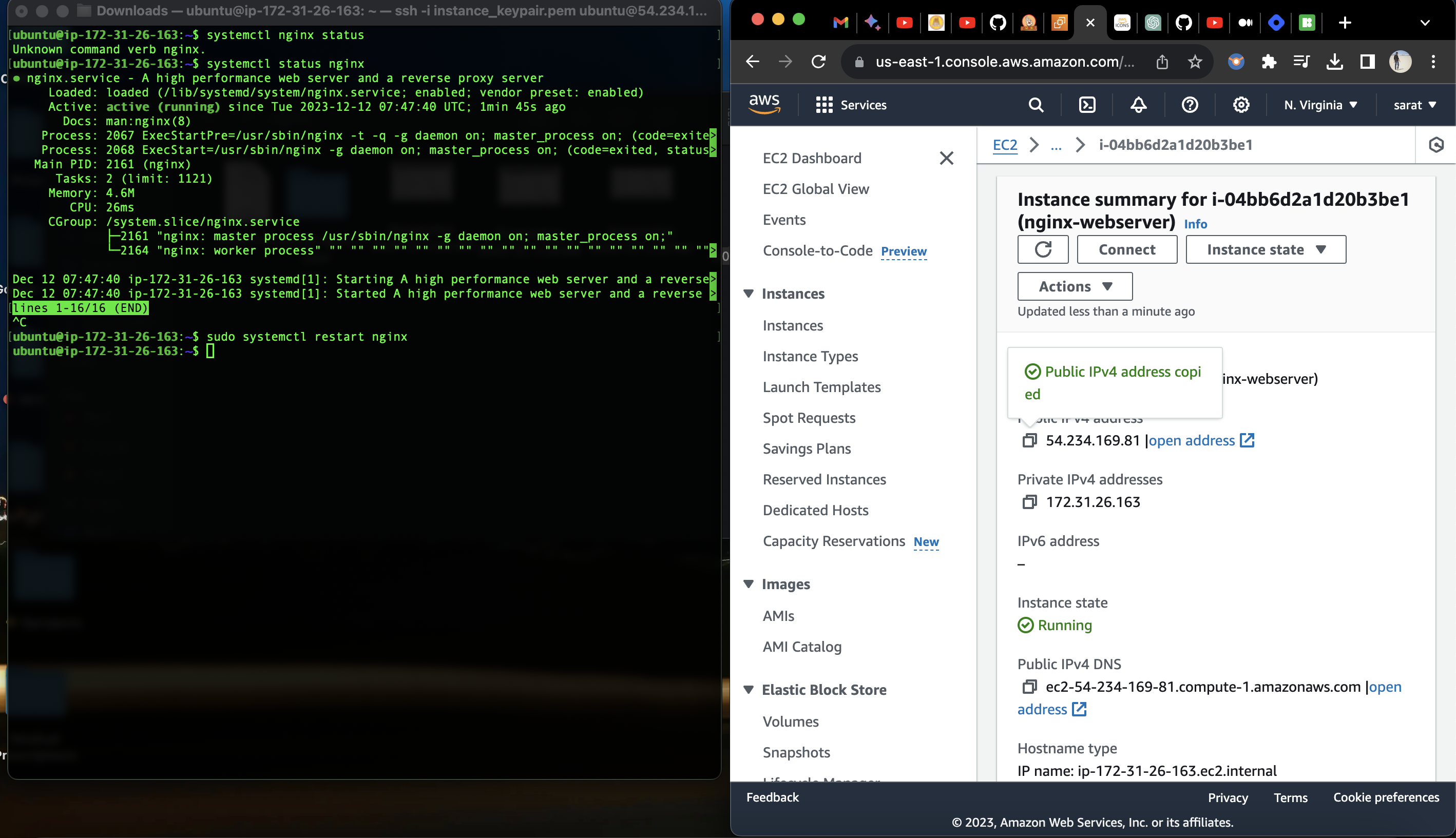
Nginx is up and running. Let us restart with the following command:
sudo systemctl restart nginx
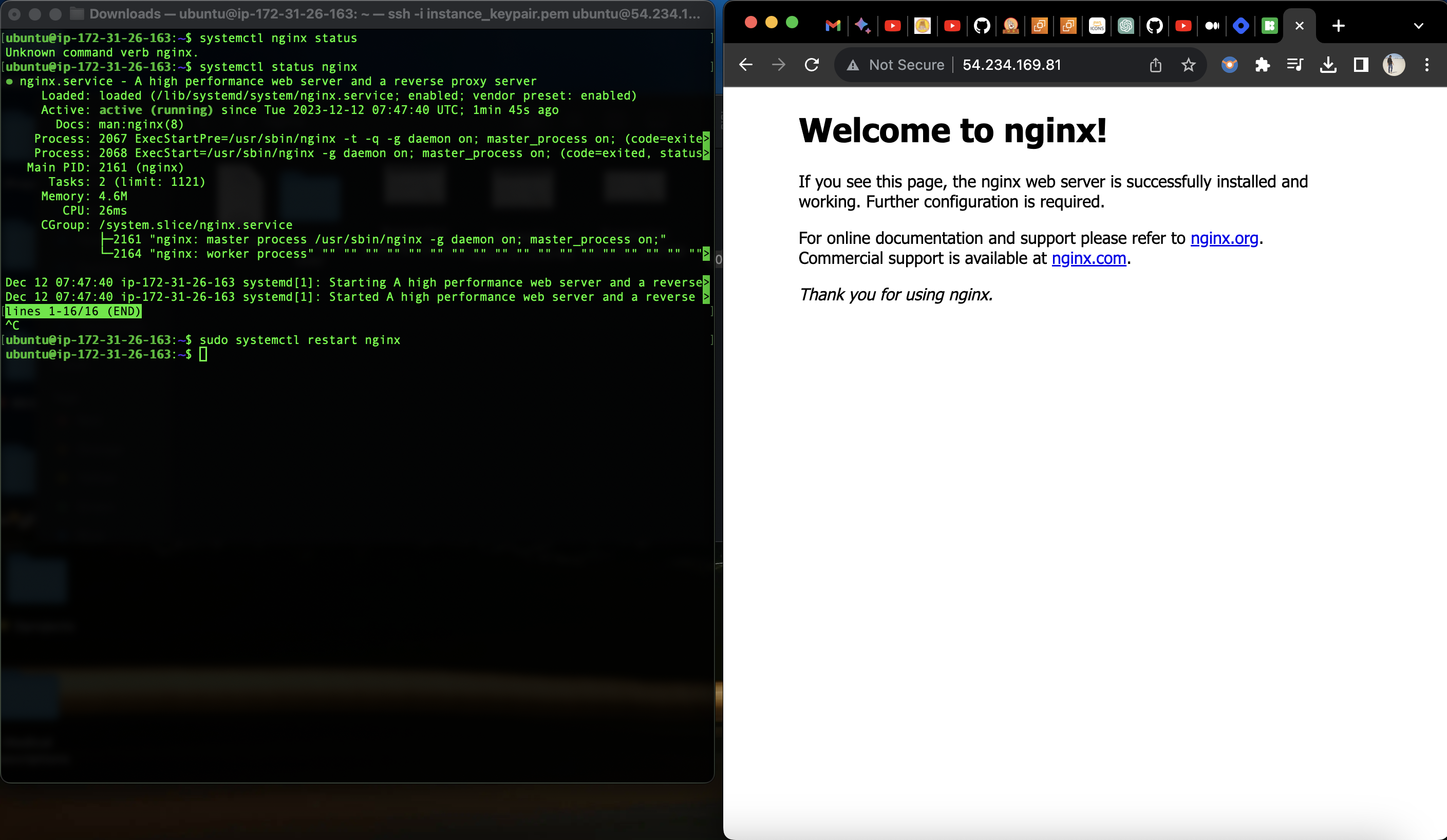
Now if we copy the public IP of the instance and paste it into the browser, we should be able to see "Welcome to Nginx ".
If we navigate to "/etc/www/html" we will have "index.nginx-debian.html", which has the HTML content that was served on the browser.
Now let us create an "index.html".
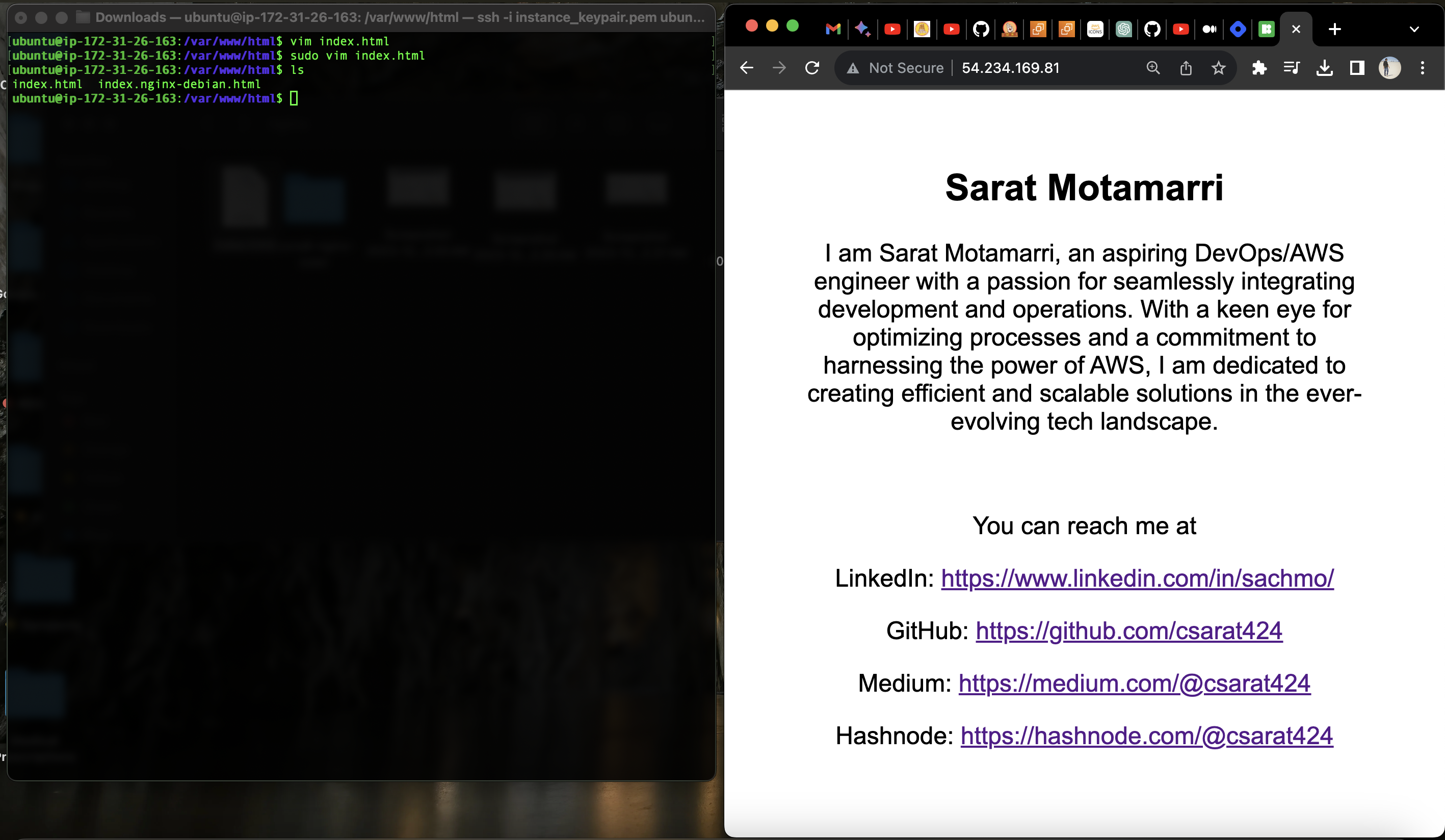
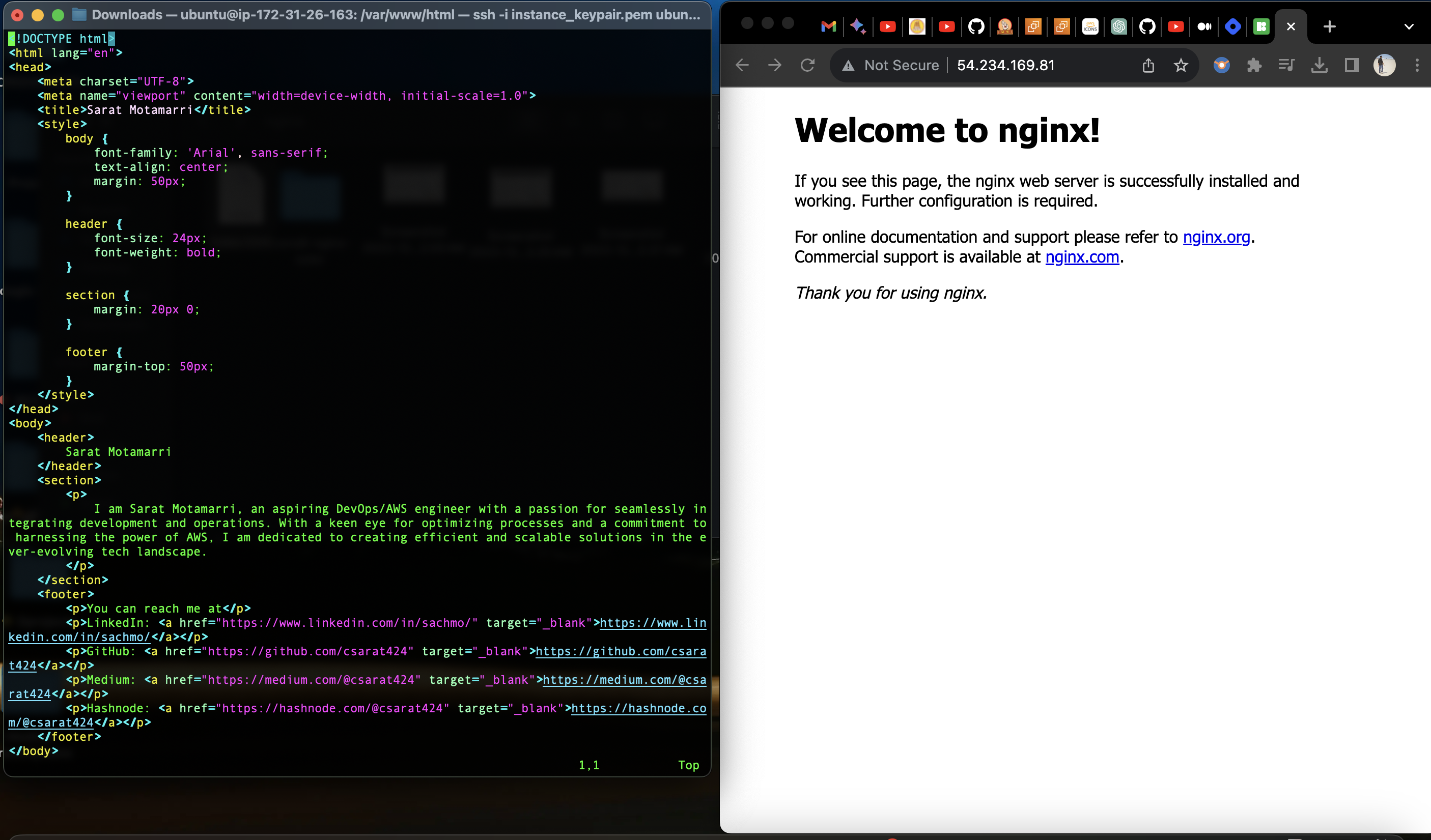
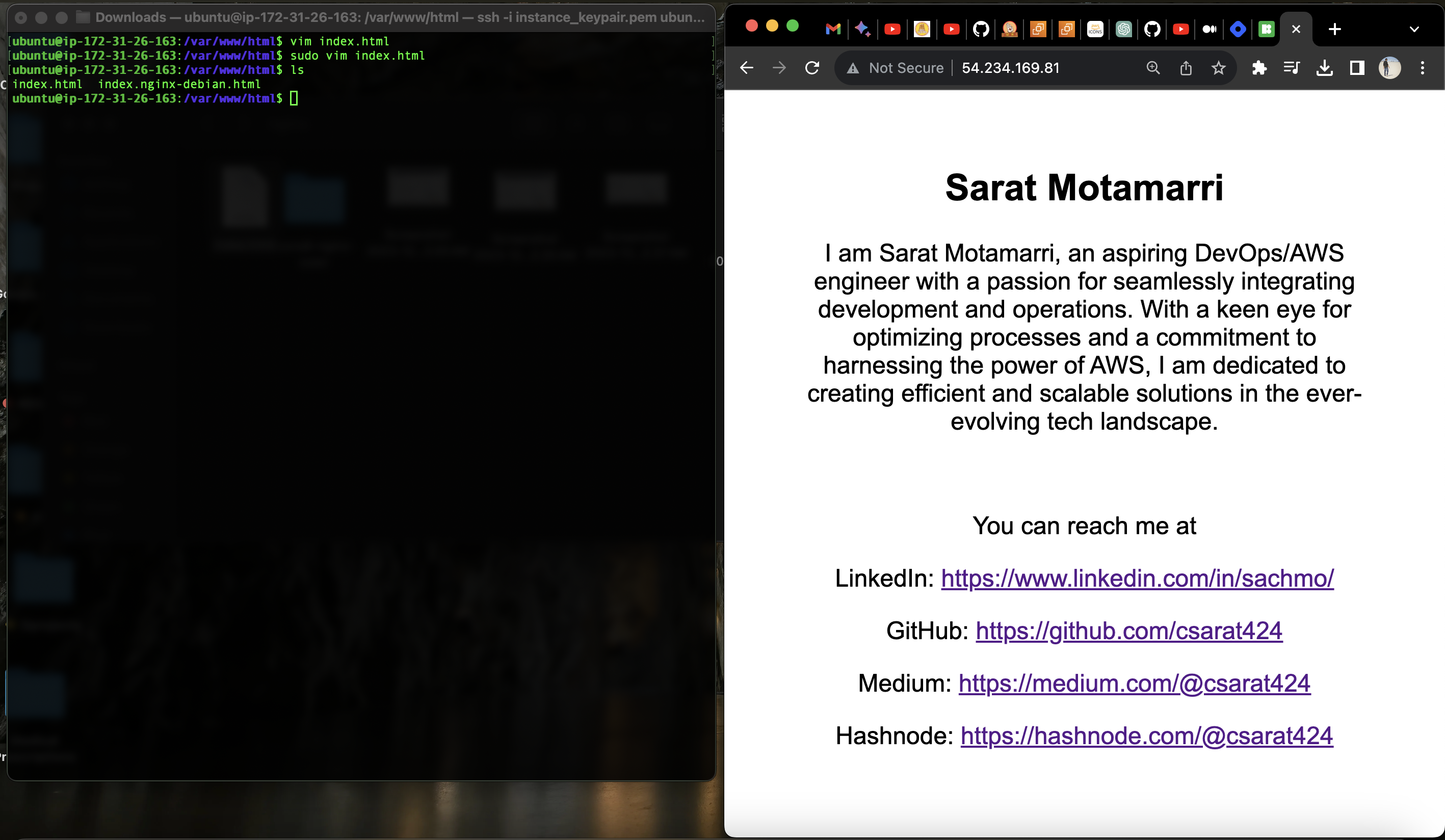
So, the path "/etc/www/html" typically stores the web-related files for the server. It's a common location for web server configurations and the root directory for serving web content.
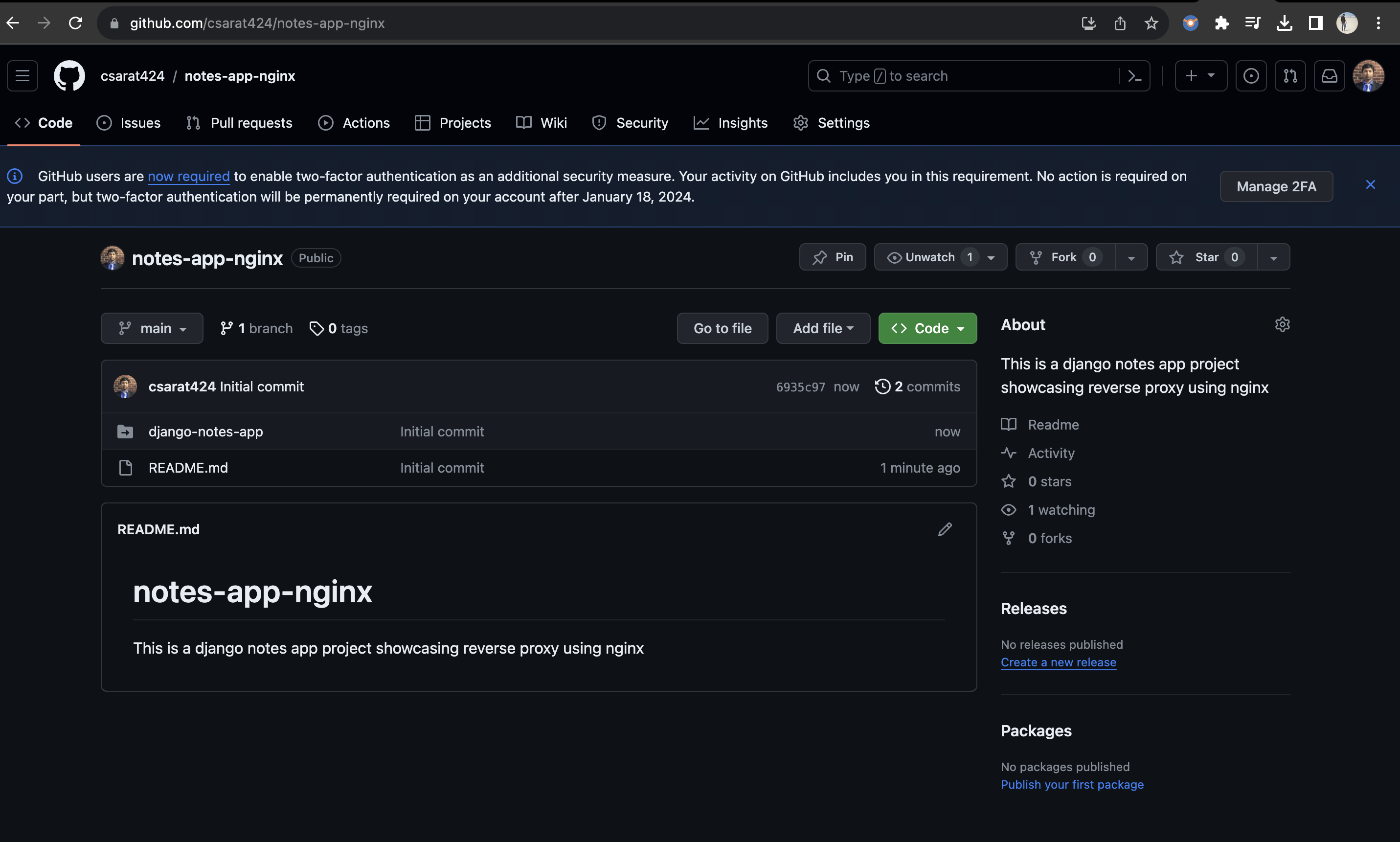
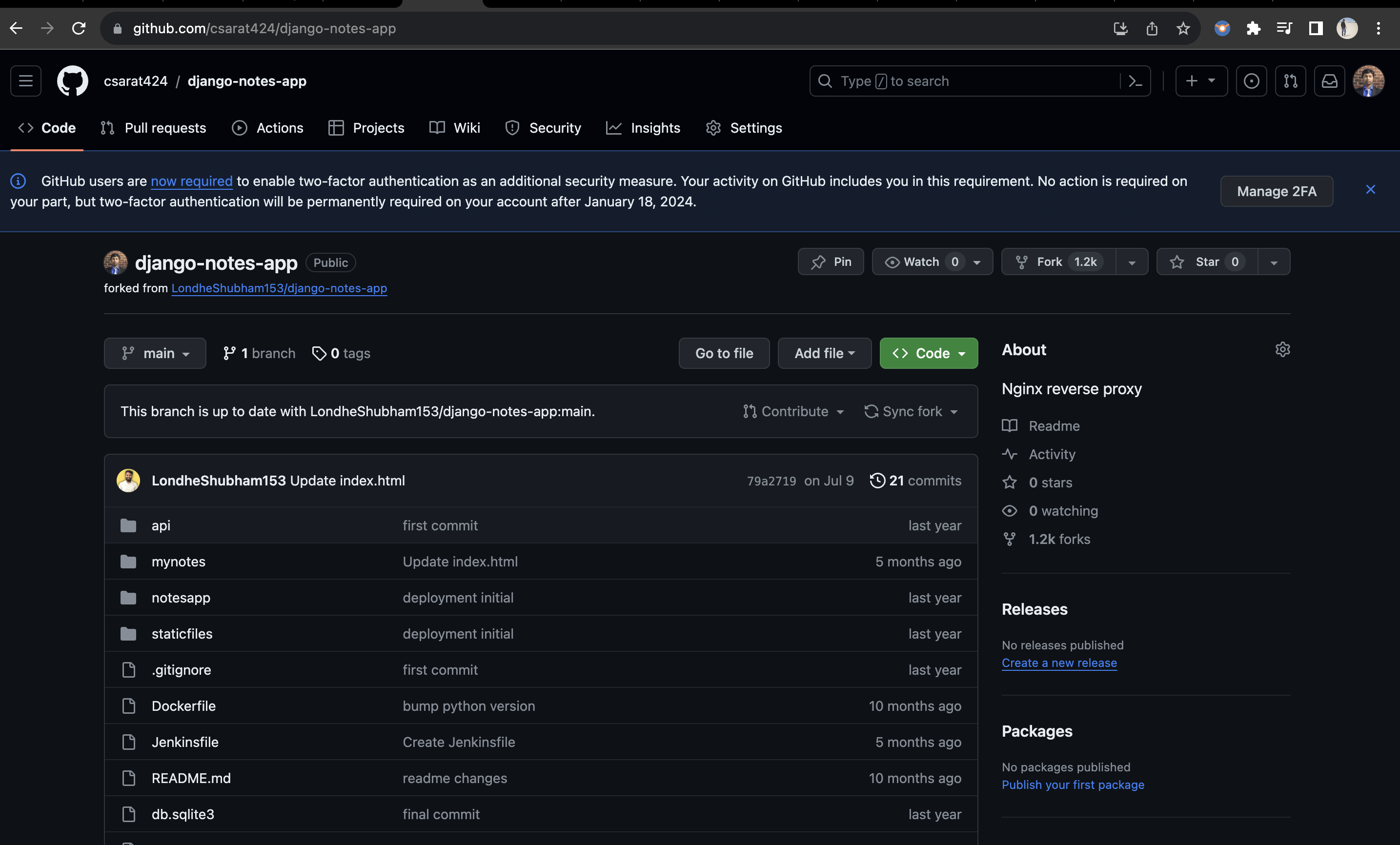
Now, let us get more technical, I want to use this reverse proxy concept and serve a simple Django-react notes app. For this, I have forked a public repo.
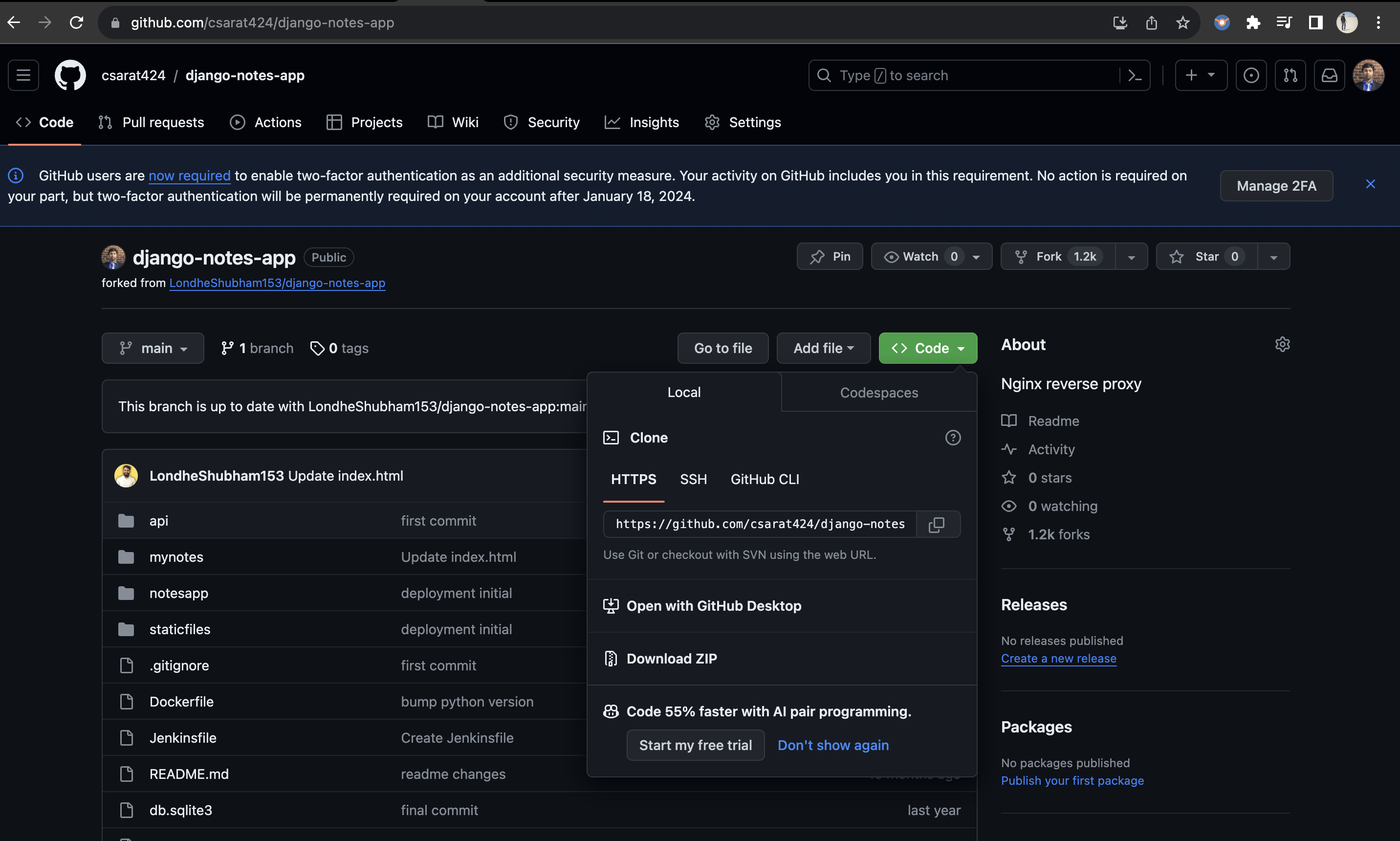
The next thing is to clone the app.
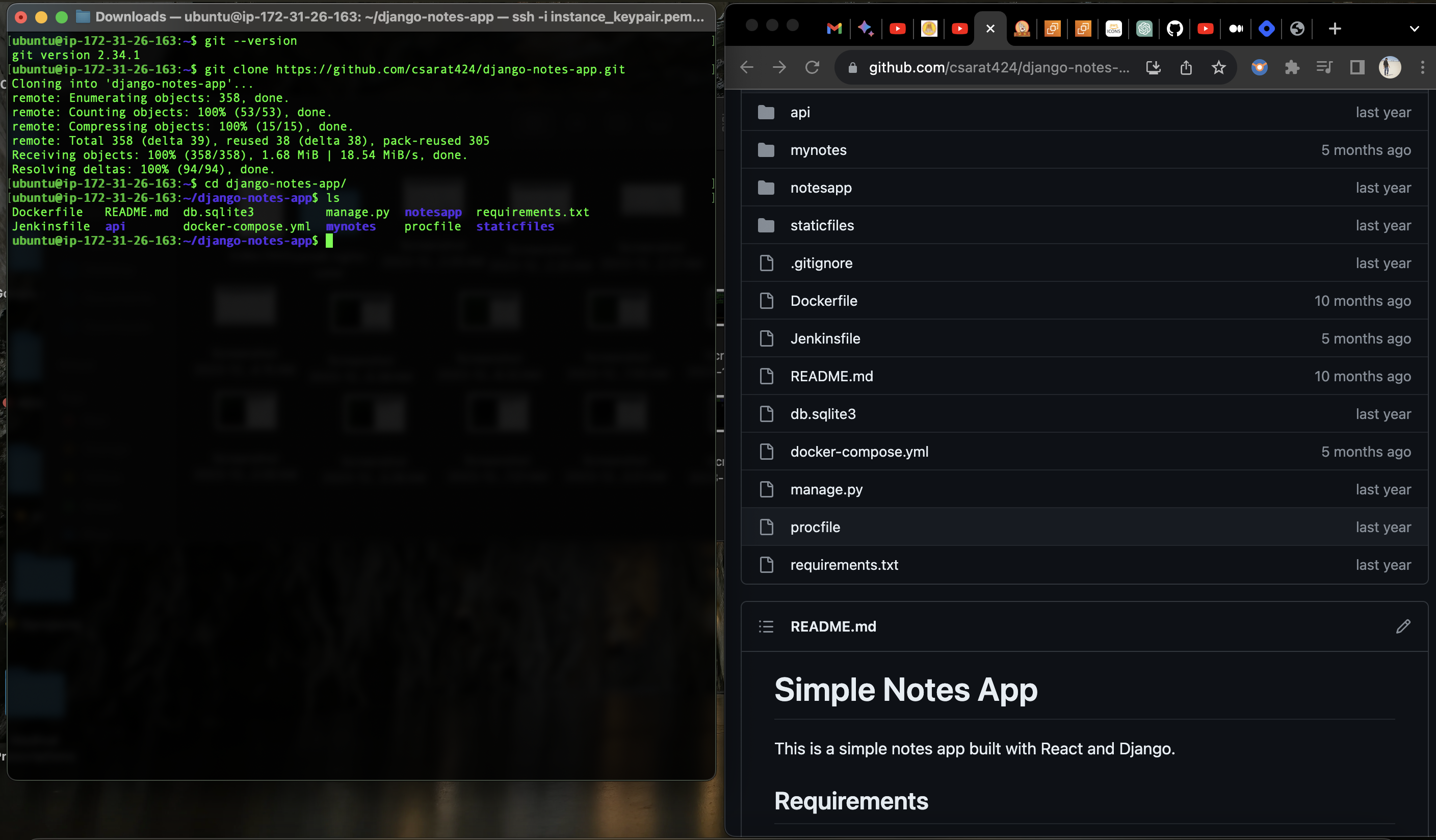
The next thing is to install Docker by using the following command:
sudo apt install docker.io
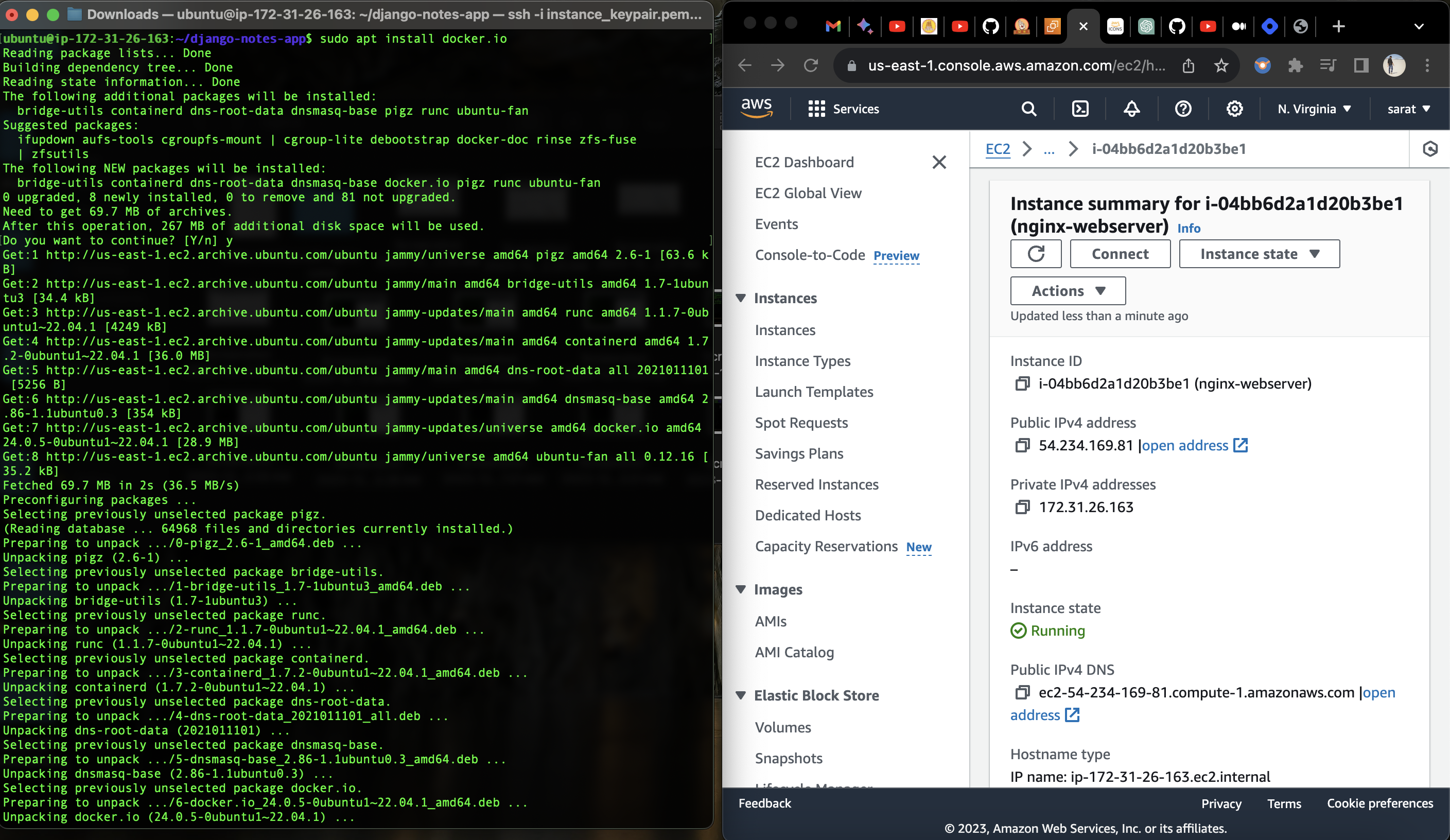
Let us check if docker is up and running, we can do this either by "doing docker --version or docker ps". The only difference is if docker is correctly installed, it will give you the version and the second one displays a list of running containers.
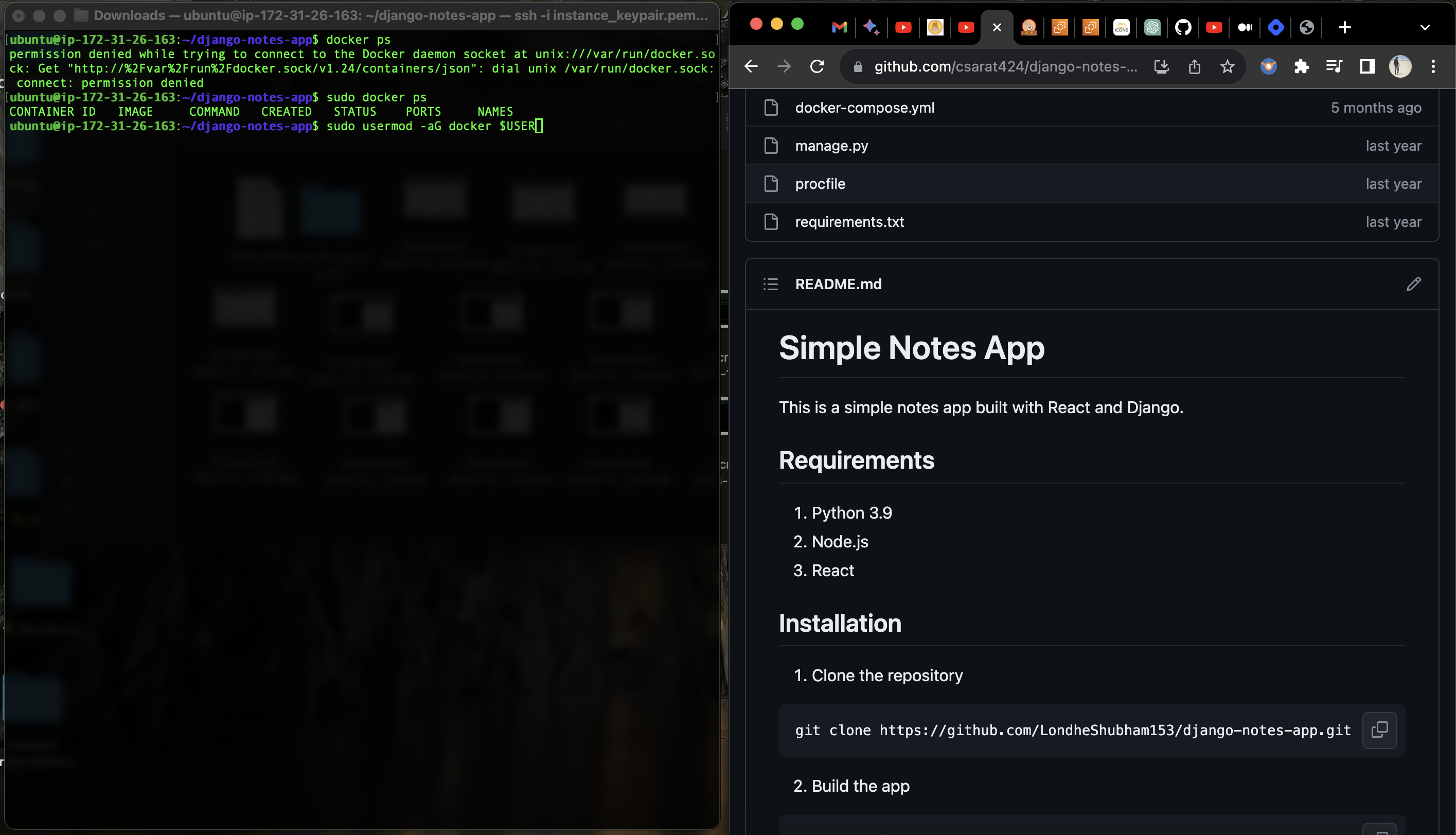
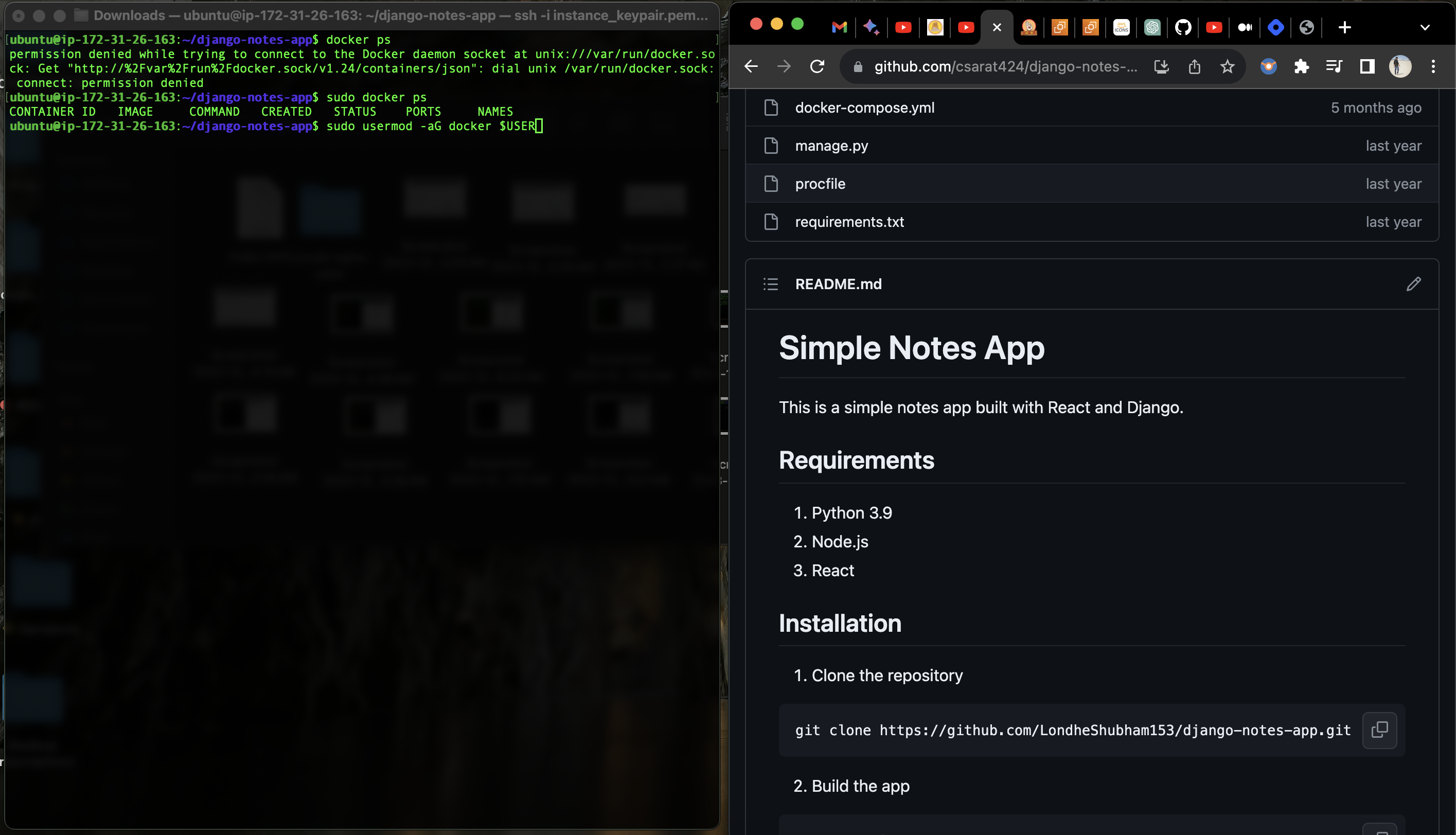
The next thing is to add the current user to the "docker". This grants the user the necessary permissions to interact with the Docker daemon, allowing them to run Docker commands without using sudo for elevated privileges.
sudo usermod -aG docker $USER
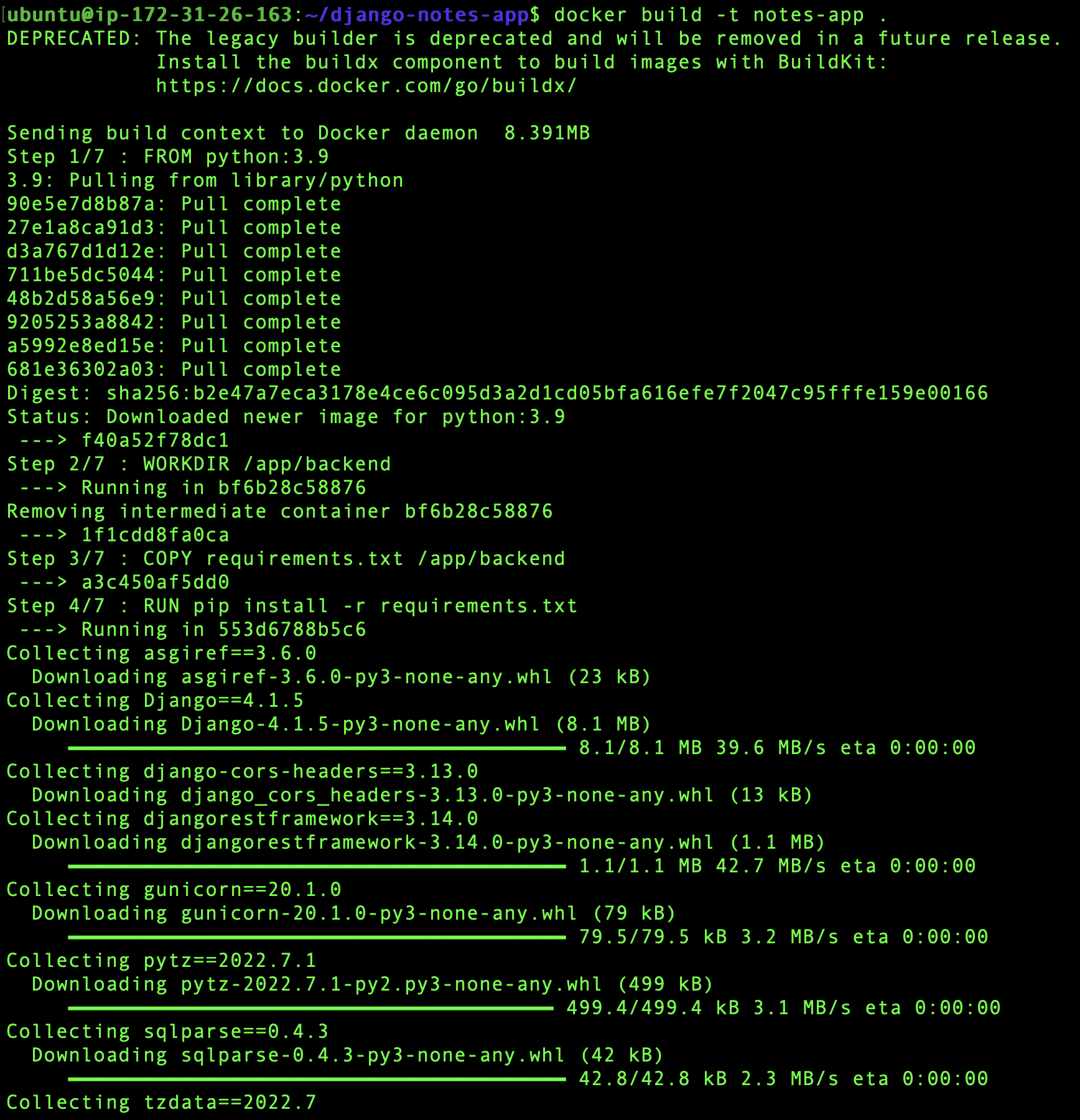
Now that we already have "dockerfile", inside our Git repo, let us build an Image, this can be achieved by the following command:
docker build -t notes-app .
FROM python:3.9

WORKDIR /app/backend

COPY requirements.txt /app/backend
RUN pip install -r requirements.txt

COPY . /app/backend

EXPOSE 8000

CMD python /app/backend/manage.py runserver 0.0.0.0:8000
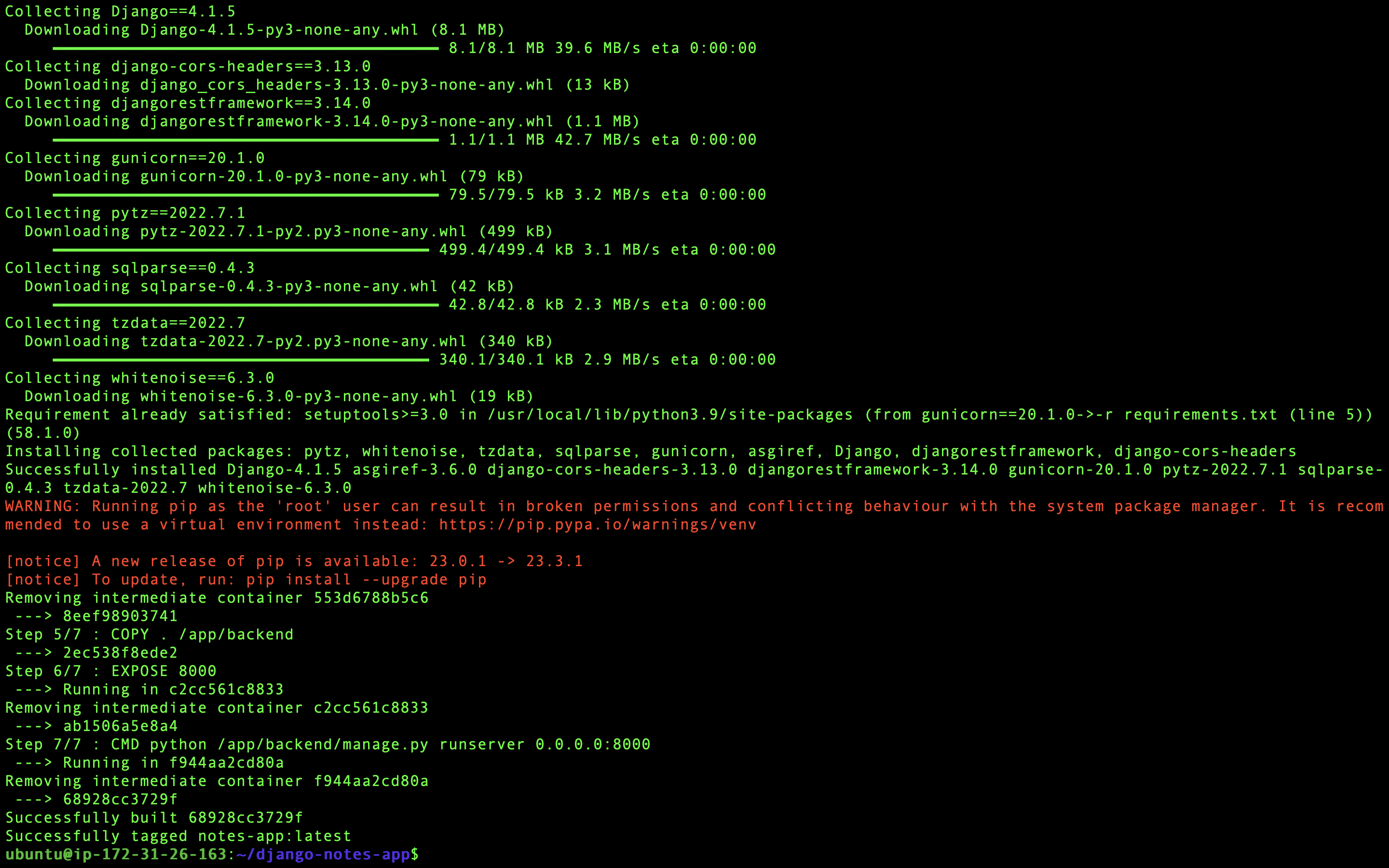
Now that our image is ready, let us run the container by the following command:
docker run -d -p 8000:8000 notes-app:latest

Now let us check if our app is running on the local host with the following command:
curl -L http://127.0.0.1:8000
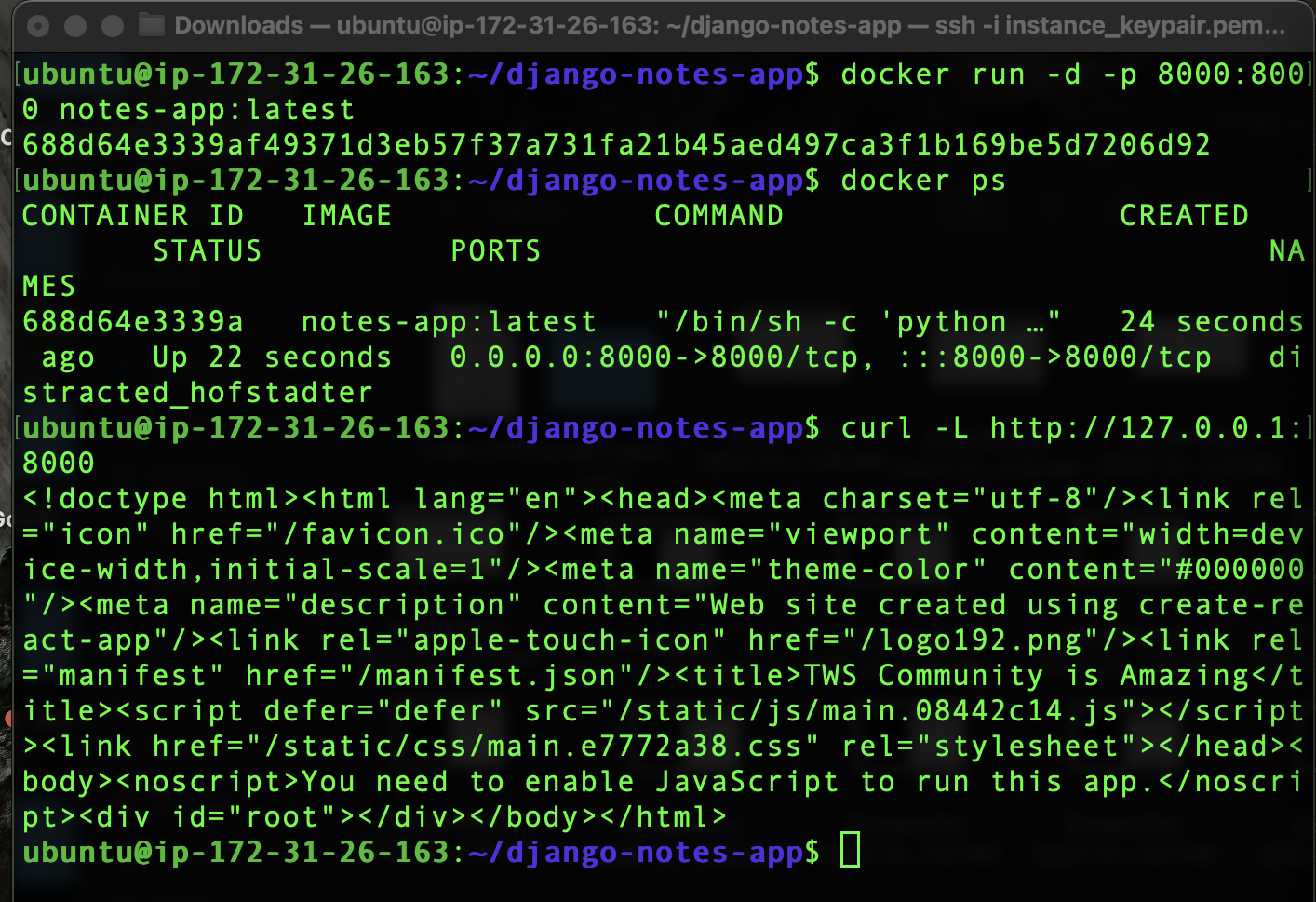
Now that our app is running, let us configure the reverse proxy. This can be achieved by navigating to "/etc/nginx/sites-enabled". /etc/nginx/sites-enabled is a directory on a system running the Nginx web server. It typically contains symbolic links to configuration files for individual websites or web applications. Nginx reads these configuration files to determine how to handle incoming web traffic for each site, allowing for easy management and organization of site-specific settings.
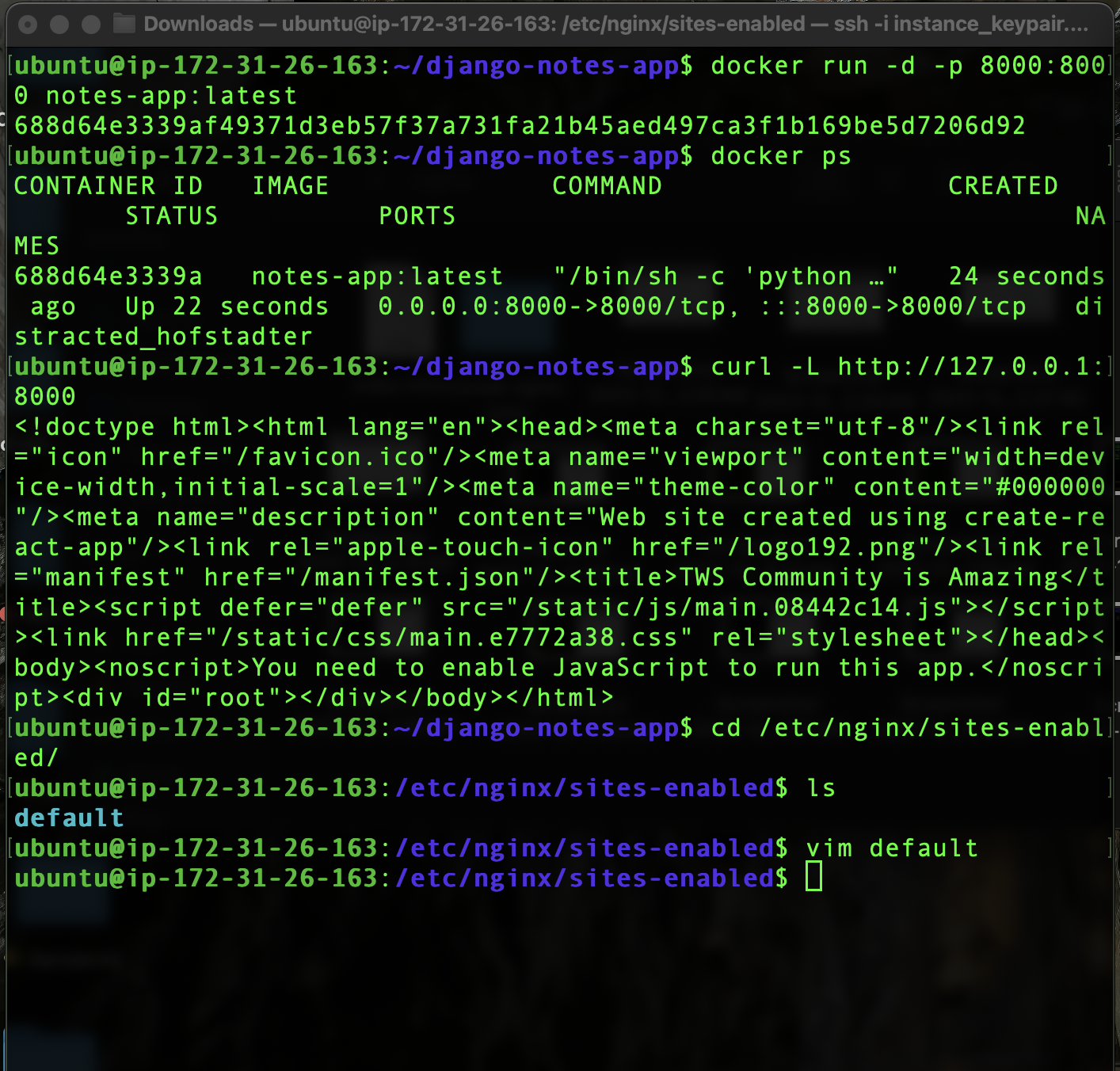
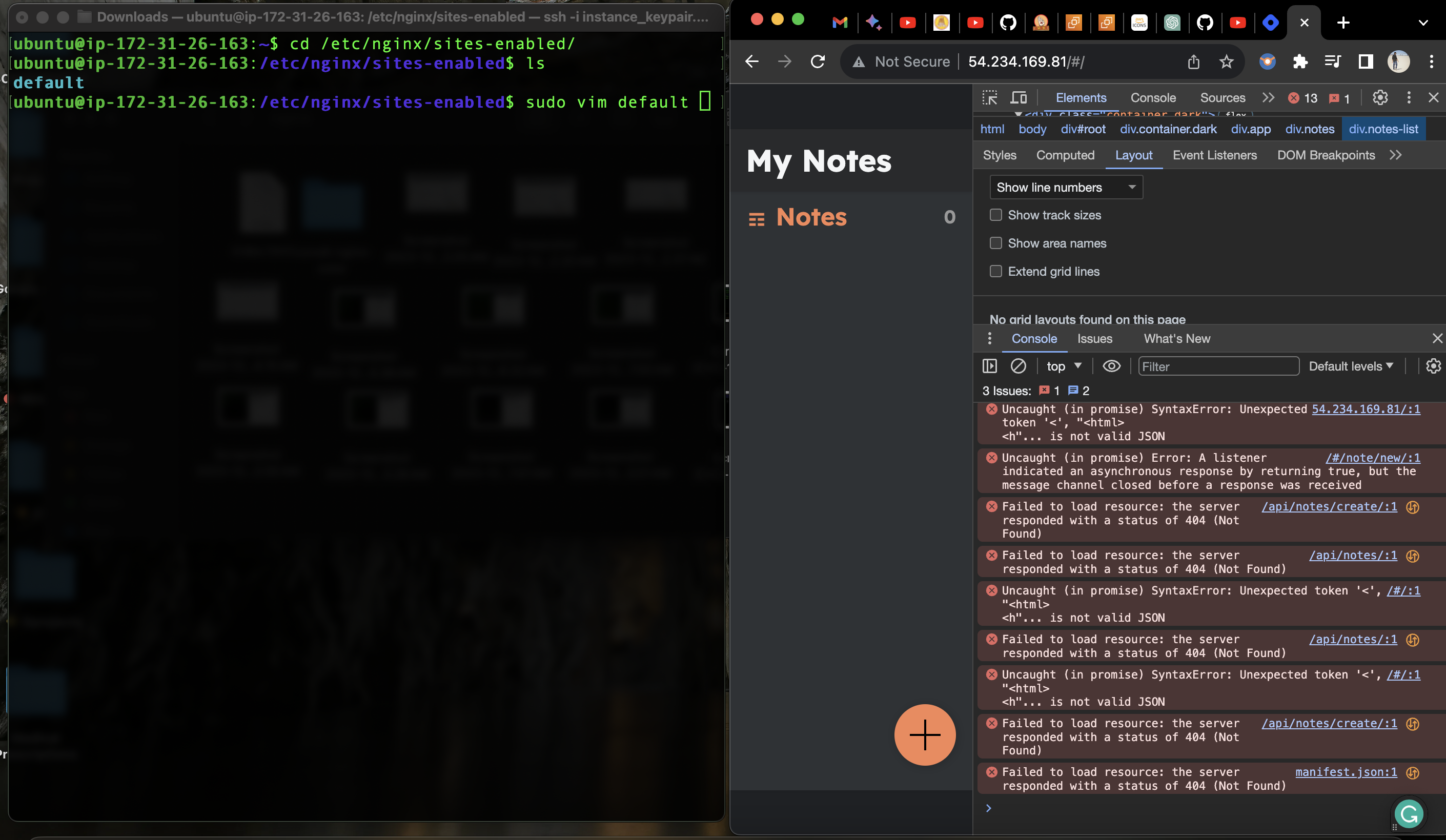
Let us now navigate further into "default" file.
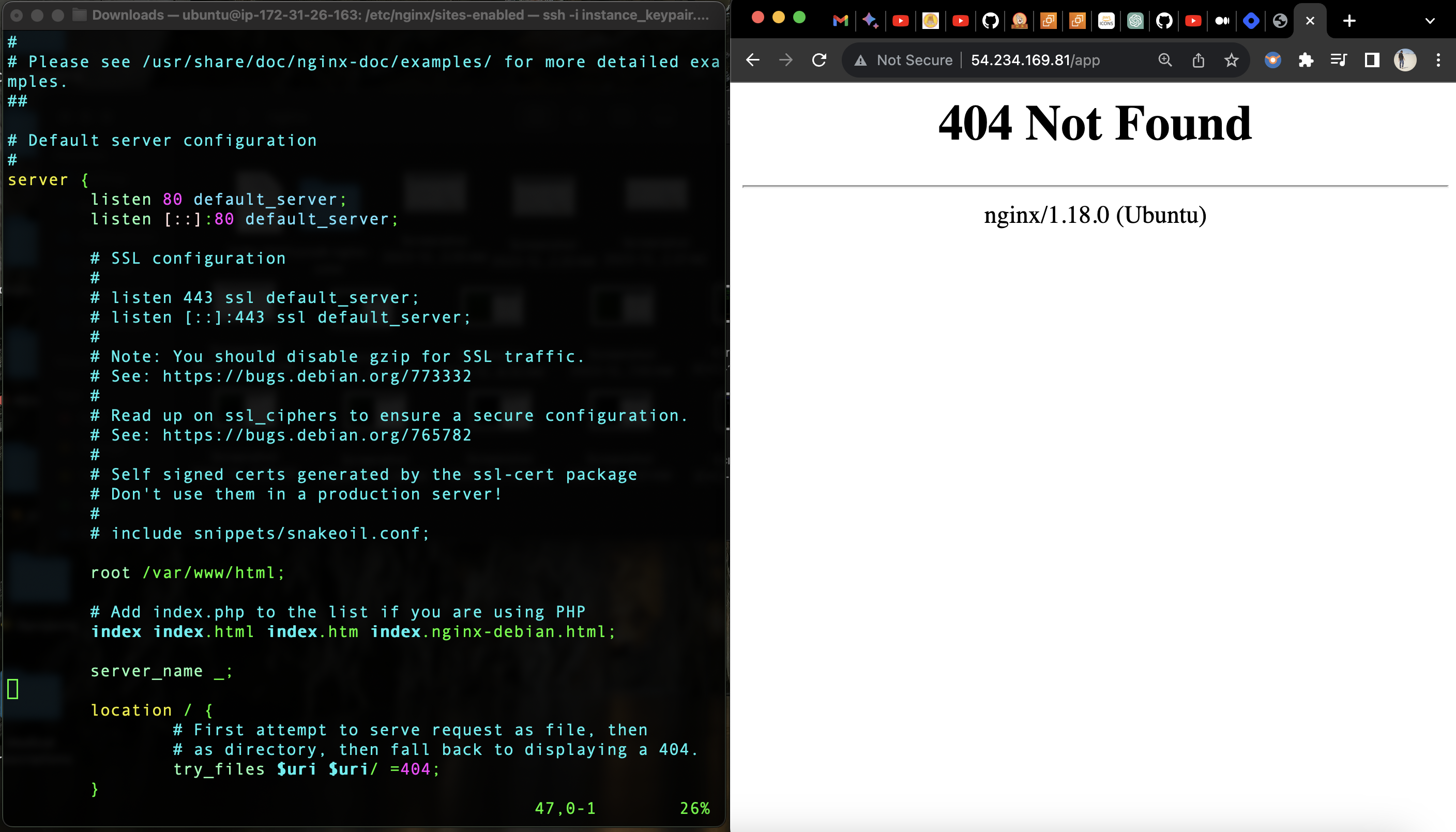
Now let us configure the proxy_pass http://127.0.0.1:8000; in the Nginx configuration directive which will instruct Nginx to pass requests to a specified backend server. In this case, it's set to pass requests to a web server running on the local machine at the address http://127.0.0.1 (localhost) and port 8000.
So, whenever Nginx receives a request, it forwards that request to the specified backend server, and the response from the backend server is then sent back to the client through Nginx. This is a common configuration when using Nginx as a reverse proxy to manage and distribute web traffic to different backend servers.
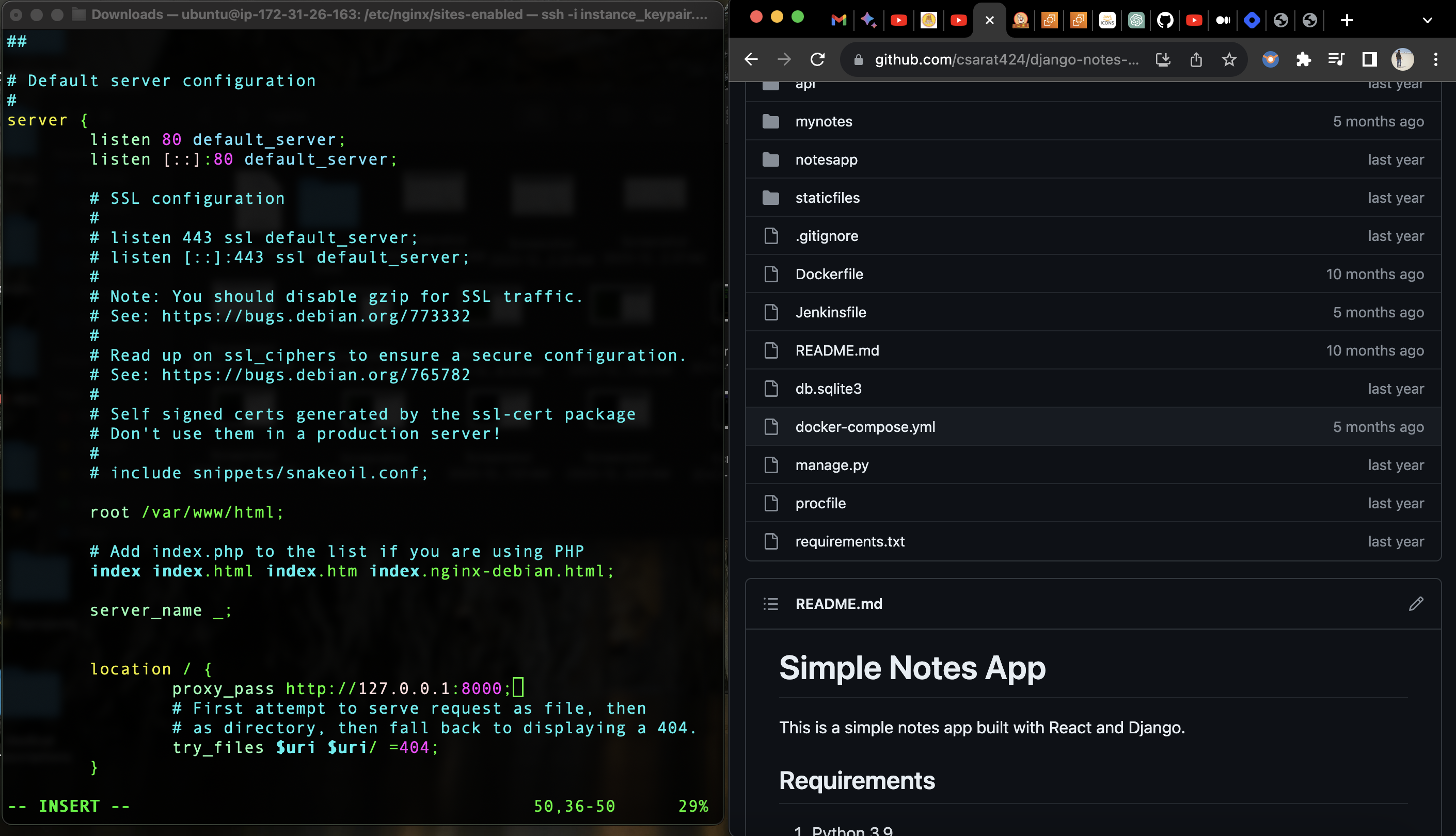
we need to restart "Nginx" by the following command:
sudo systemctl restart nginx
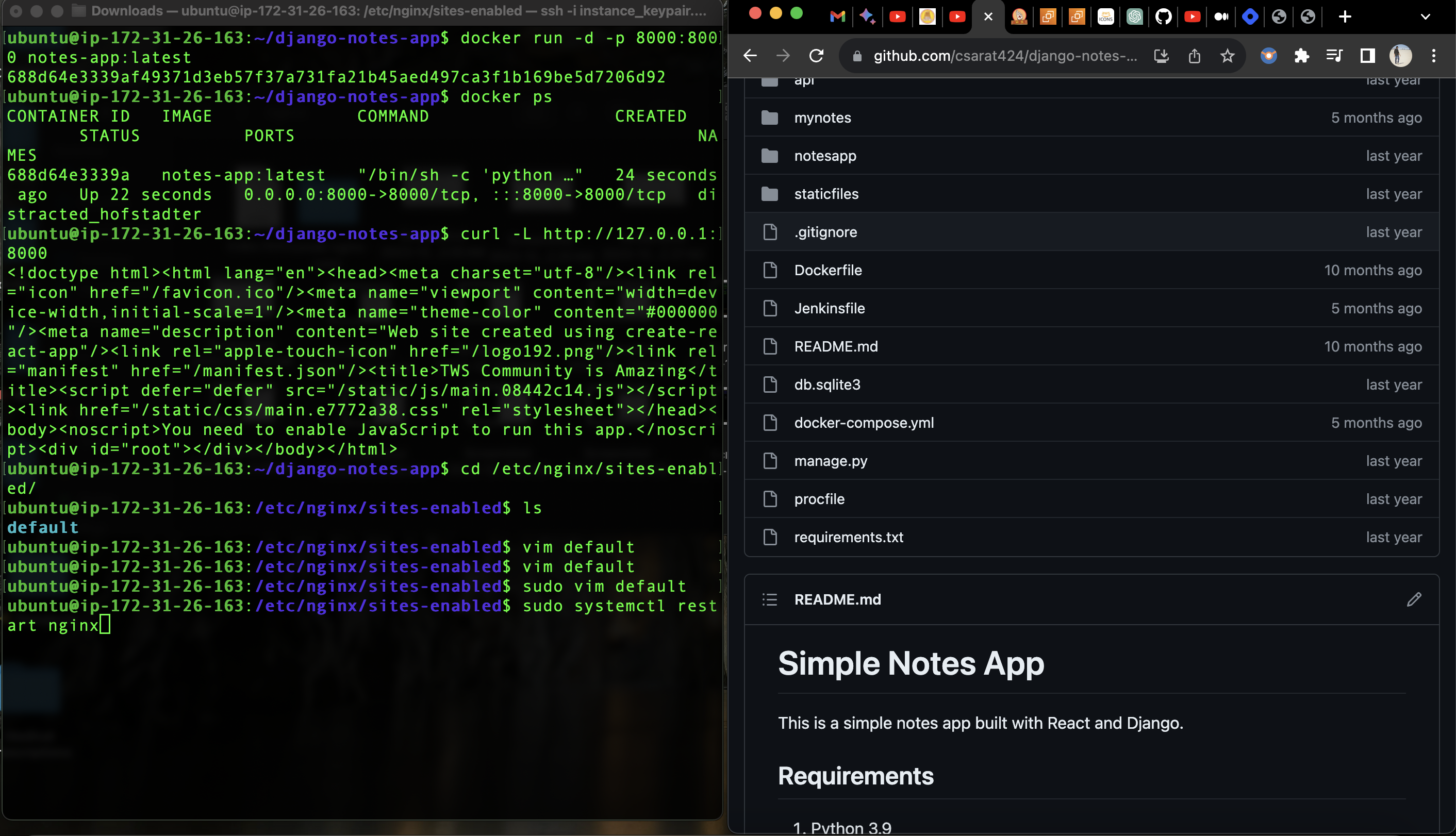

Now let us navigate to the "Django-notes-app>>mynotes>>build" and copy all files from the current location to the /var/www/html directory, which requires elevated privileges to perform the copy operation. Now if we refresh we should be able to see our app on the Browser.
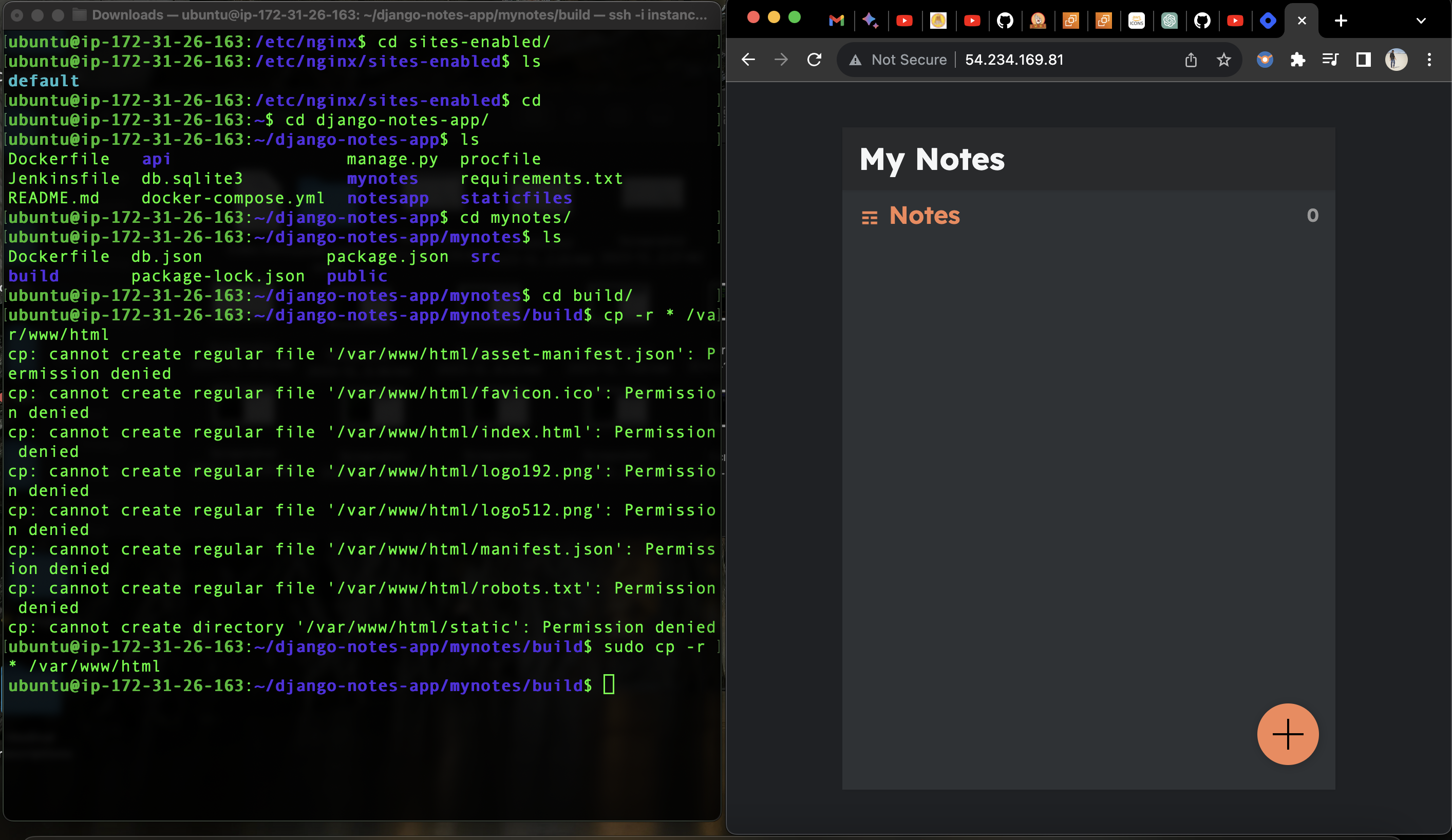
Let us scribble something and try to save it.
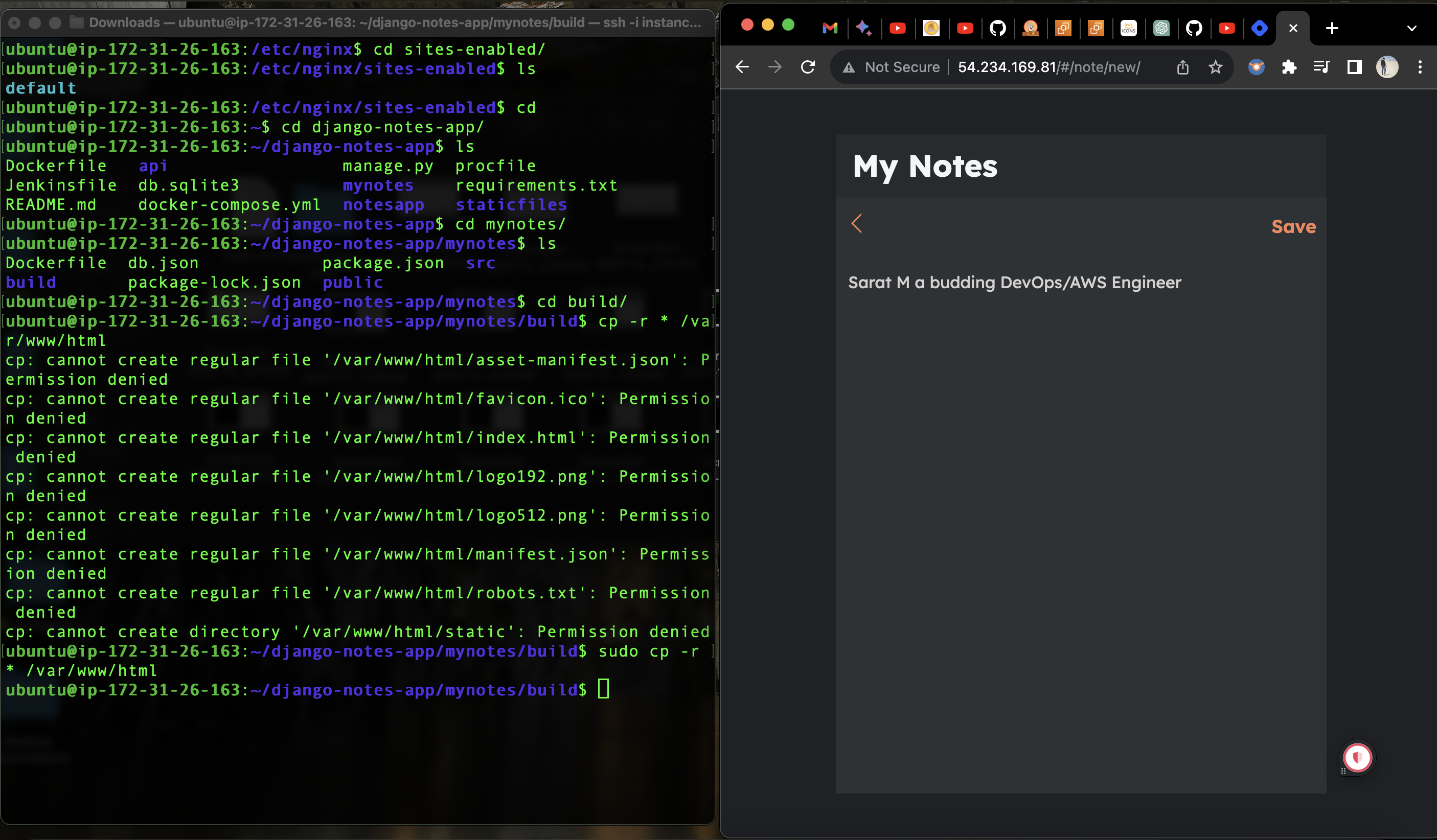
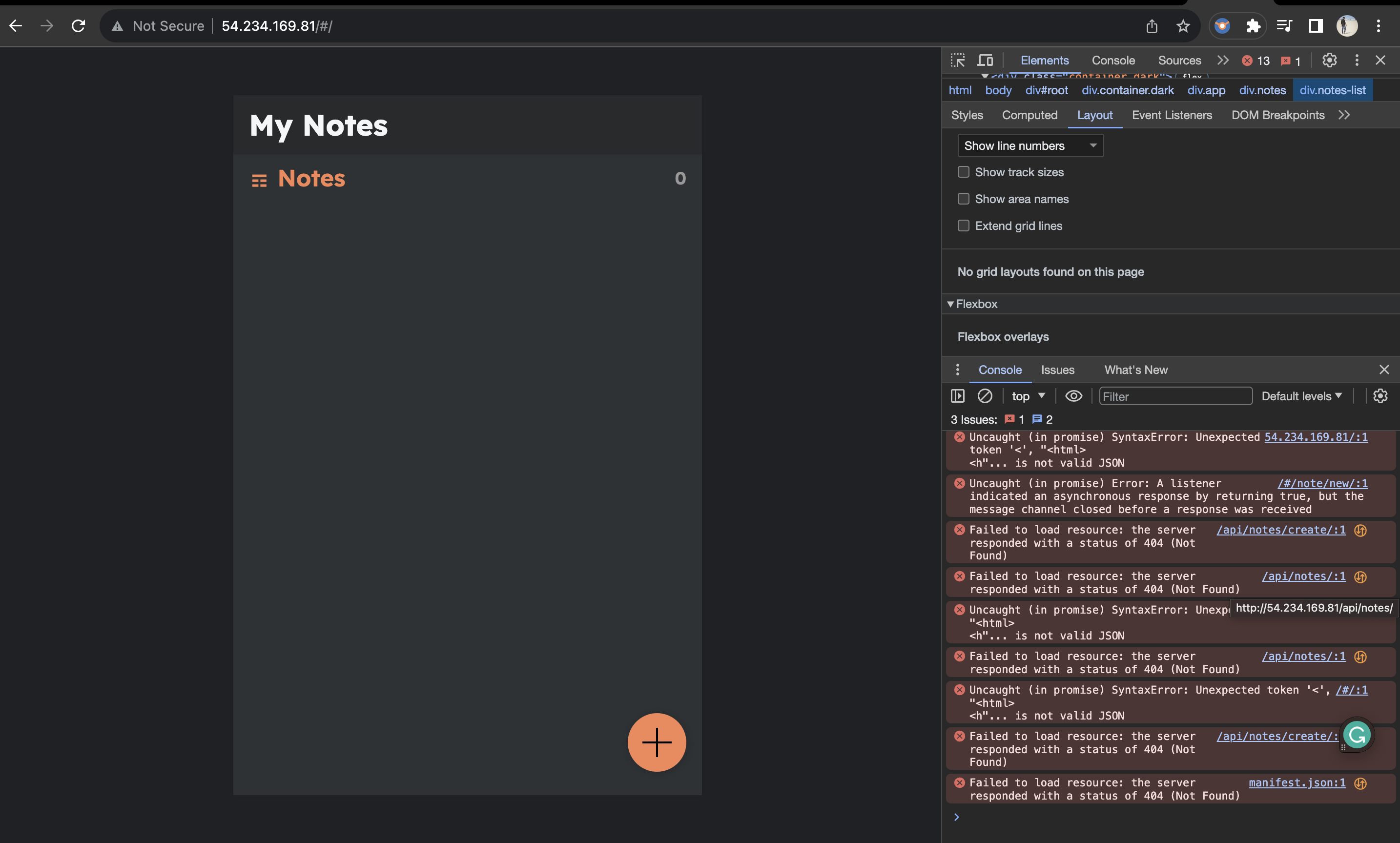
Nothing is getting saved let us debug from the console, it seems "API" or the database connectivity is missing. Let us check locally if our "API" is working by the following command:
curl -L http://127.0.0.1:8000/api
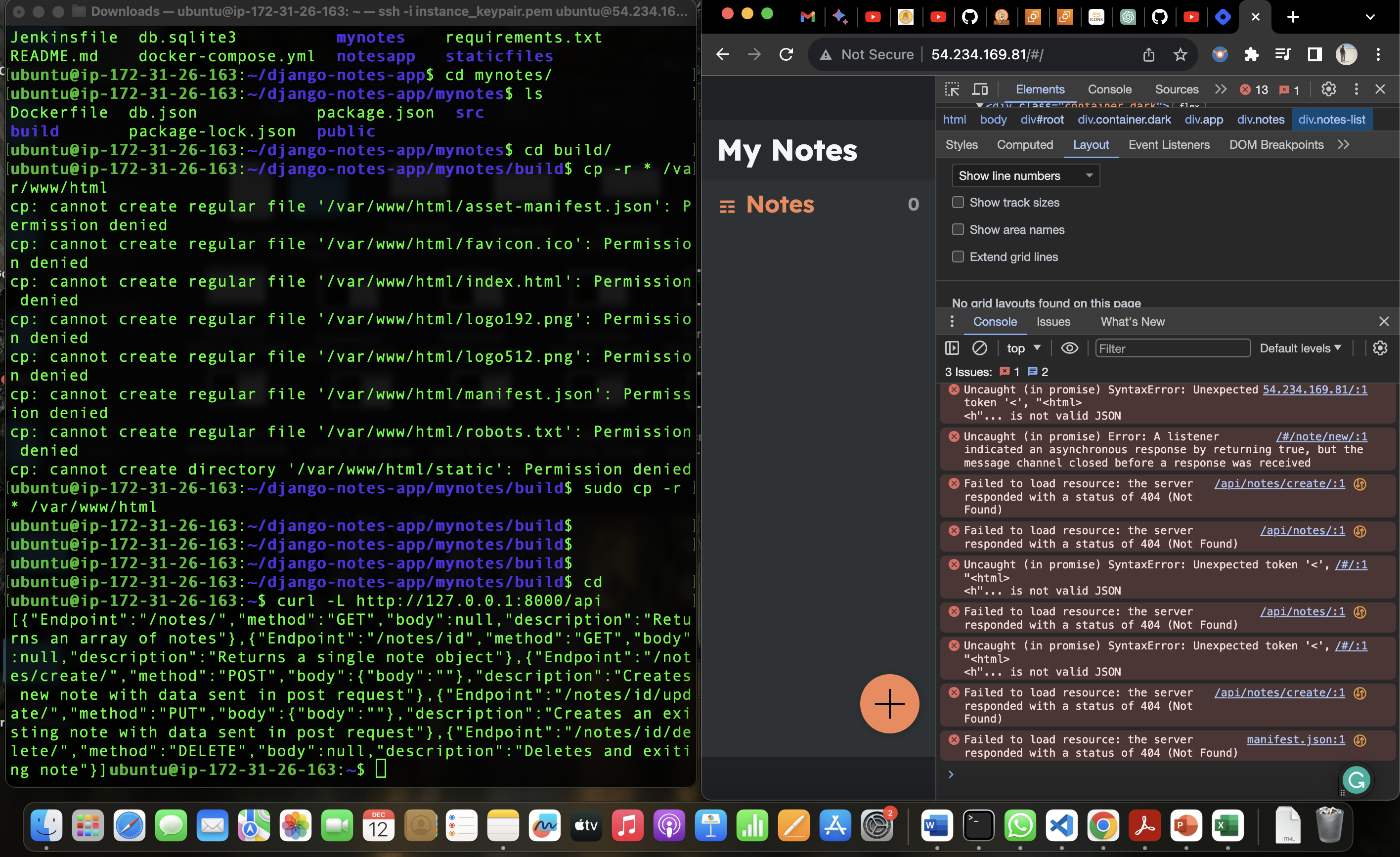
Now let us navigate to default file.
Now let us add the following command:
location /api {
          proxy_pass http://127.0.0.1:8000/api;
}
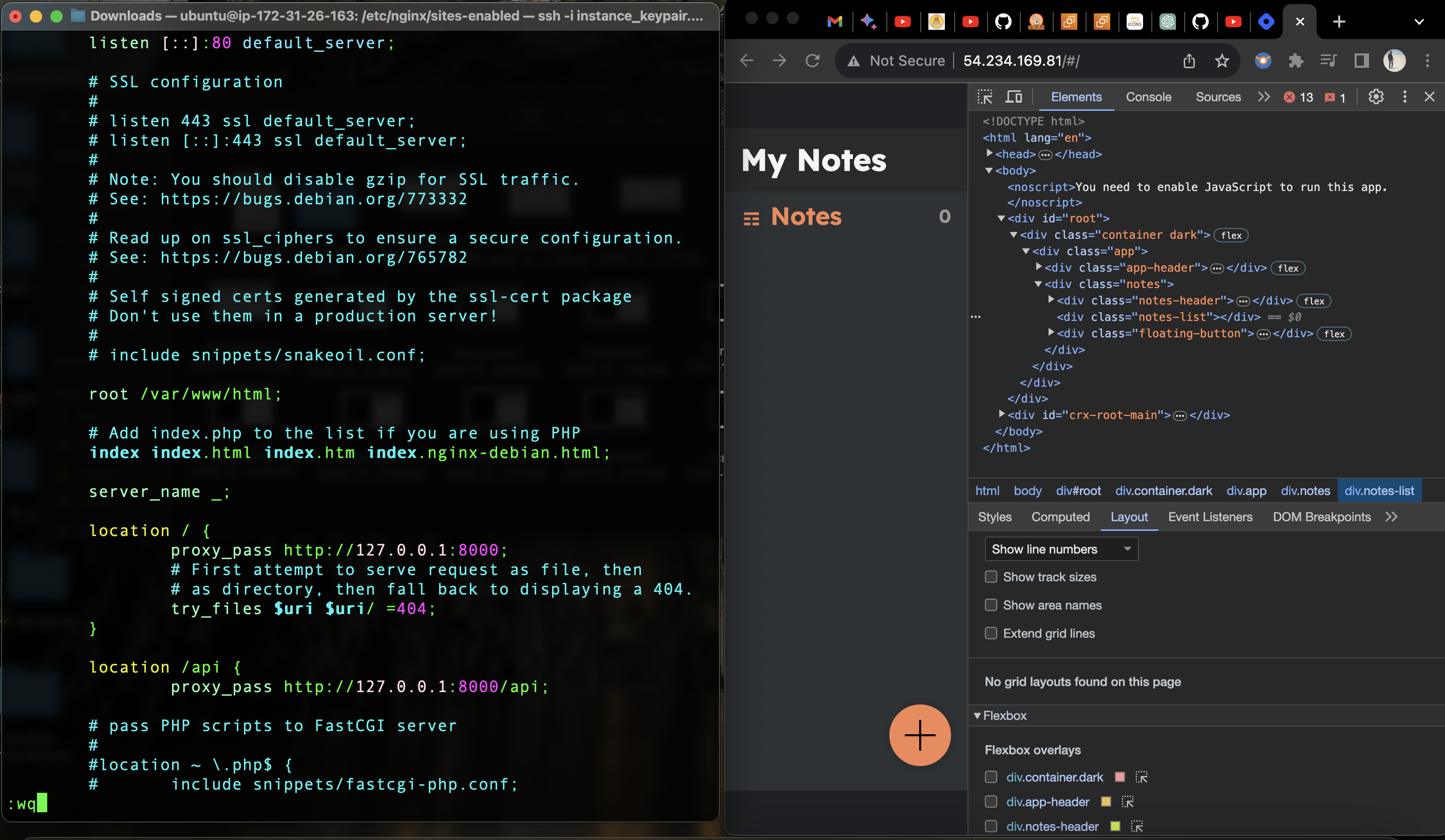
This Nginx configuration block instructs Nginx to proxy requests that match the location "/api" to a backend server located at http://127.0.0.1:8000/api.
Here's a breakdown of the configuration:
location /api: This directive specifies a location block that matches requests with the URI path "/api". In other words, it's saying, "If the requested URL starts with '/api', apply the following configuration."proxy_passhttp://127.0.0.1:8000/api;: This line tells Nginx to forward (proxy) requests that match the "/api" location to the specified backend server athttp://127.0.0.1:8000/api. This is common in setups where there's a backend server handling API requests.
If a client requests http://yourdomain.com/api/some_endpoint, Nginx will forward that request to http://127.0.0.1:8000/api/some_endpoint. This is often used when you have a separate backend server (maybe a web application or an API server) running on the same machine or a different machine, and Nginx acts as a reverse proxy to route requests accordingly.
Now we need to restart Nginx.
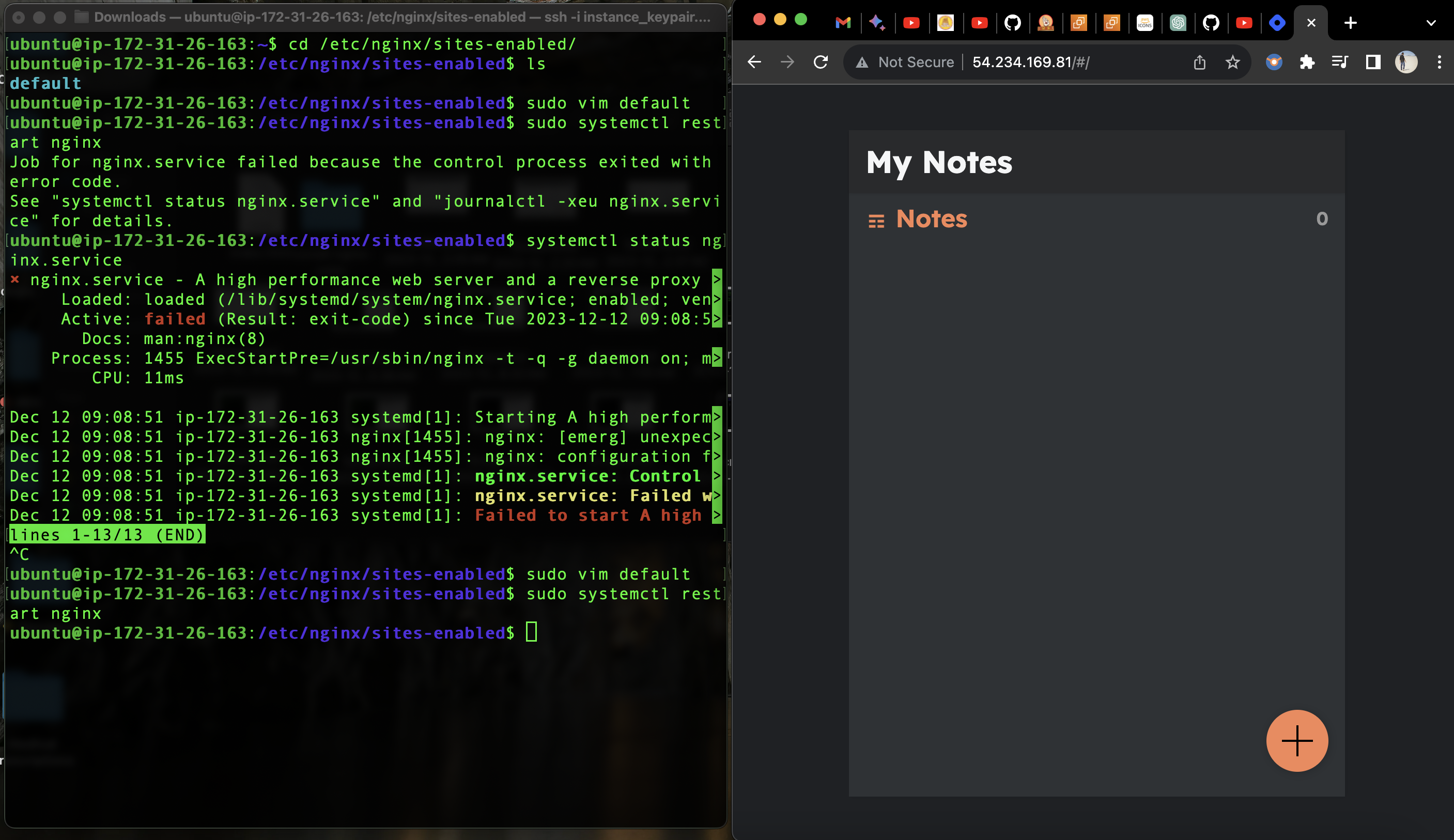
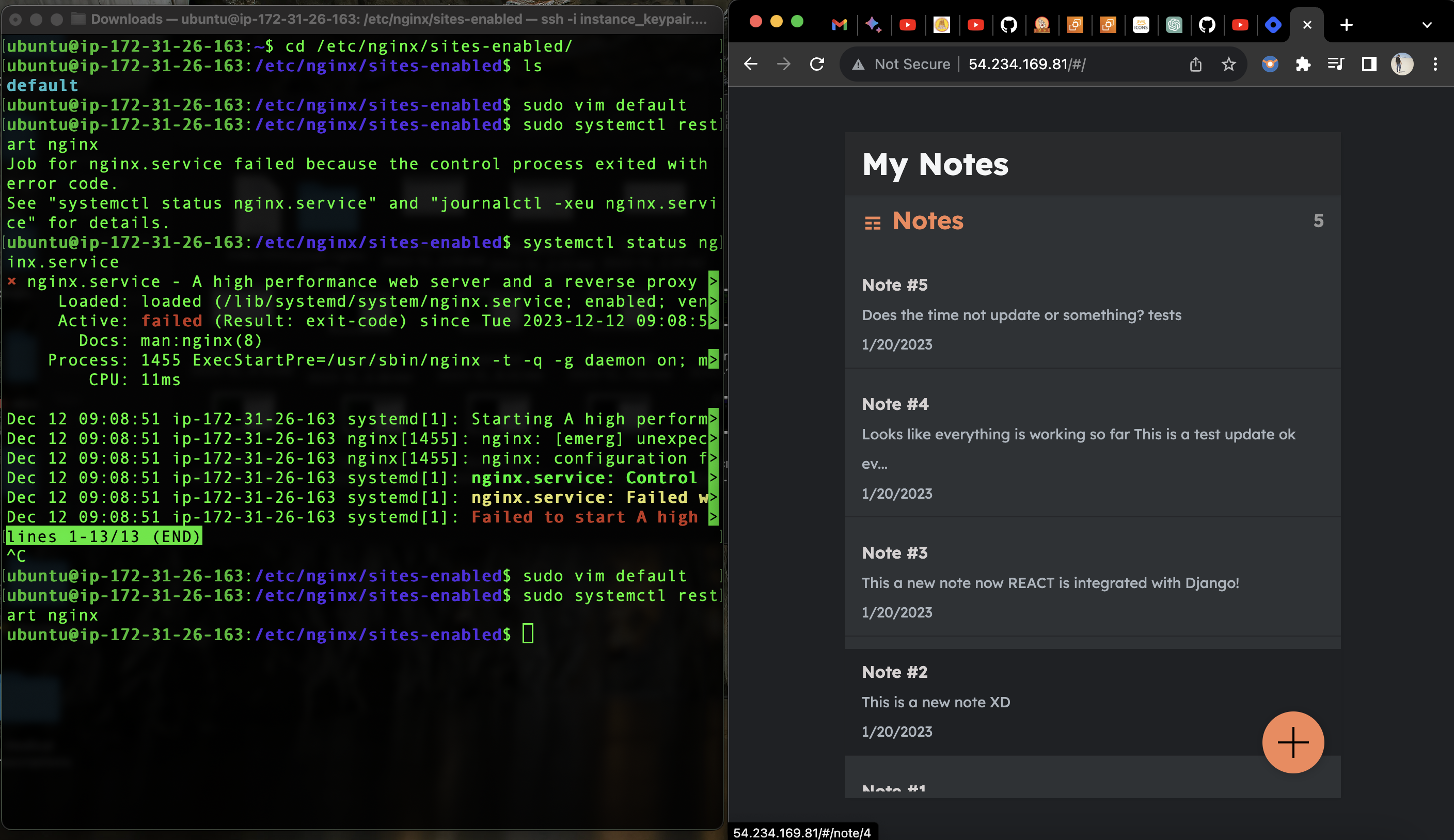
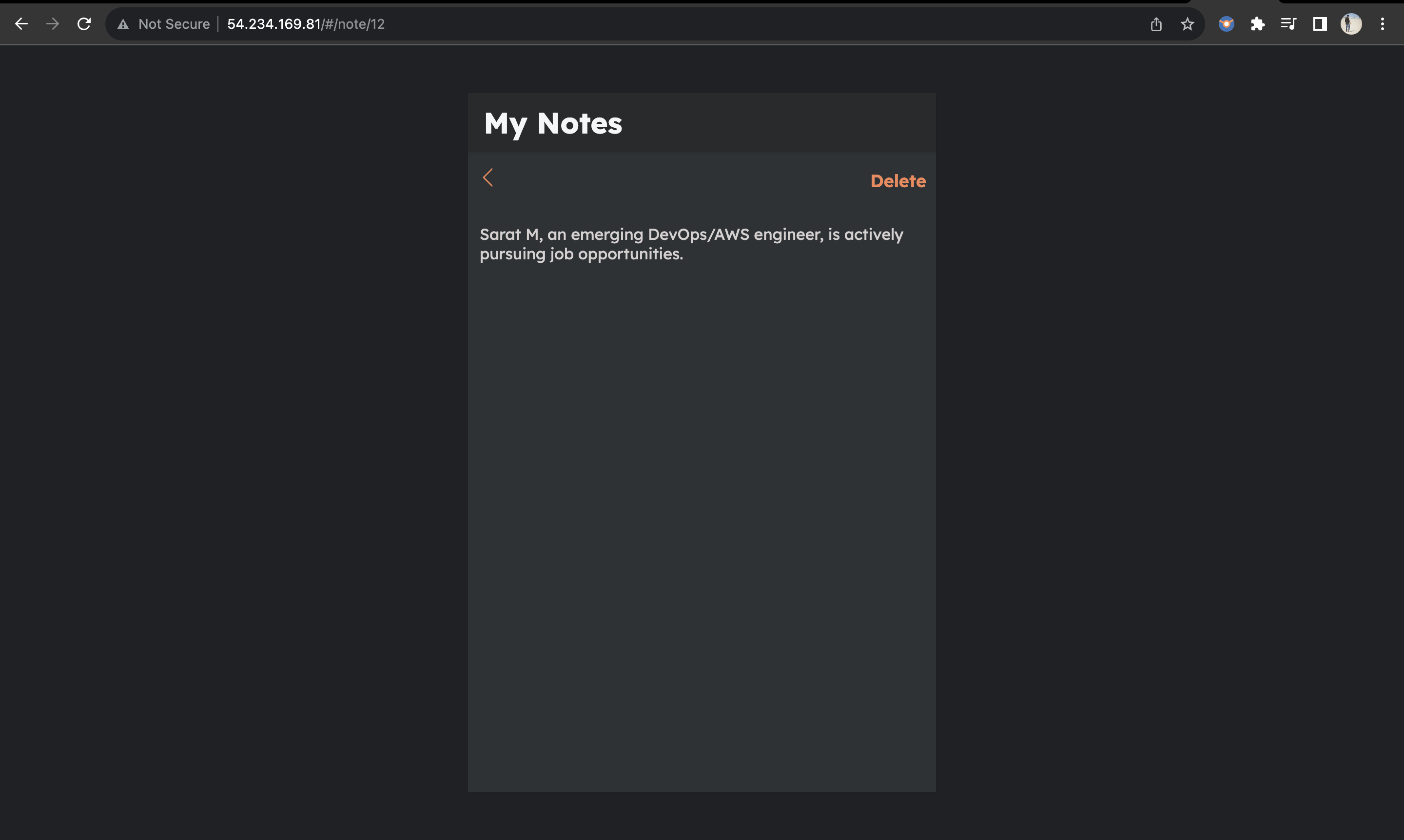
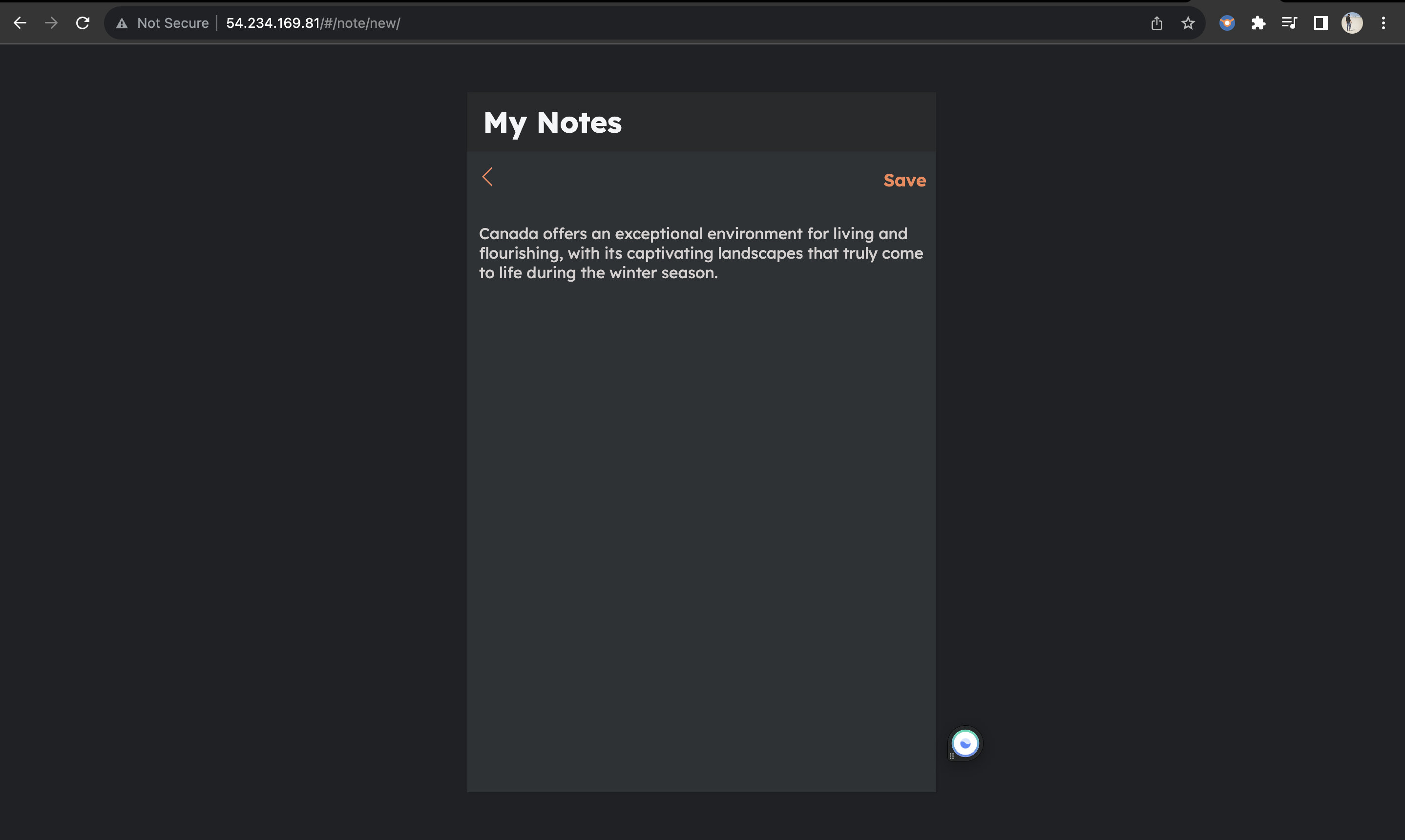
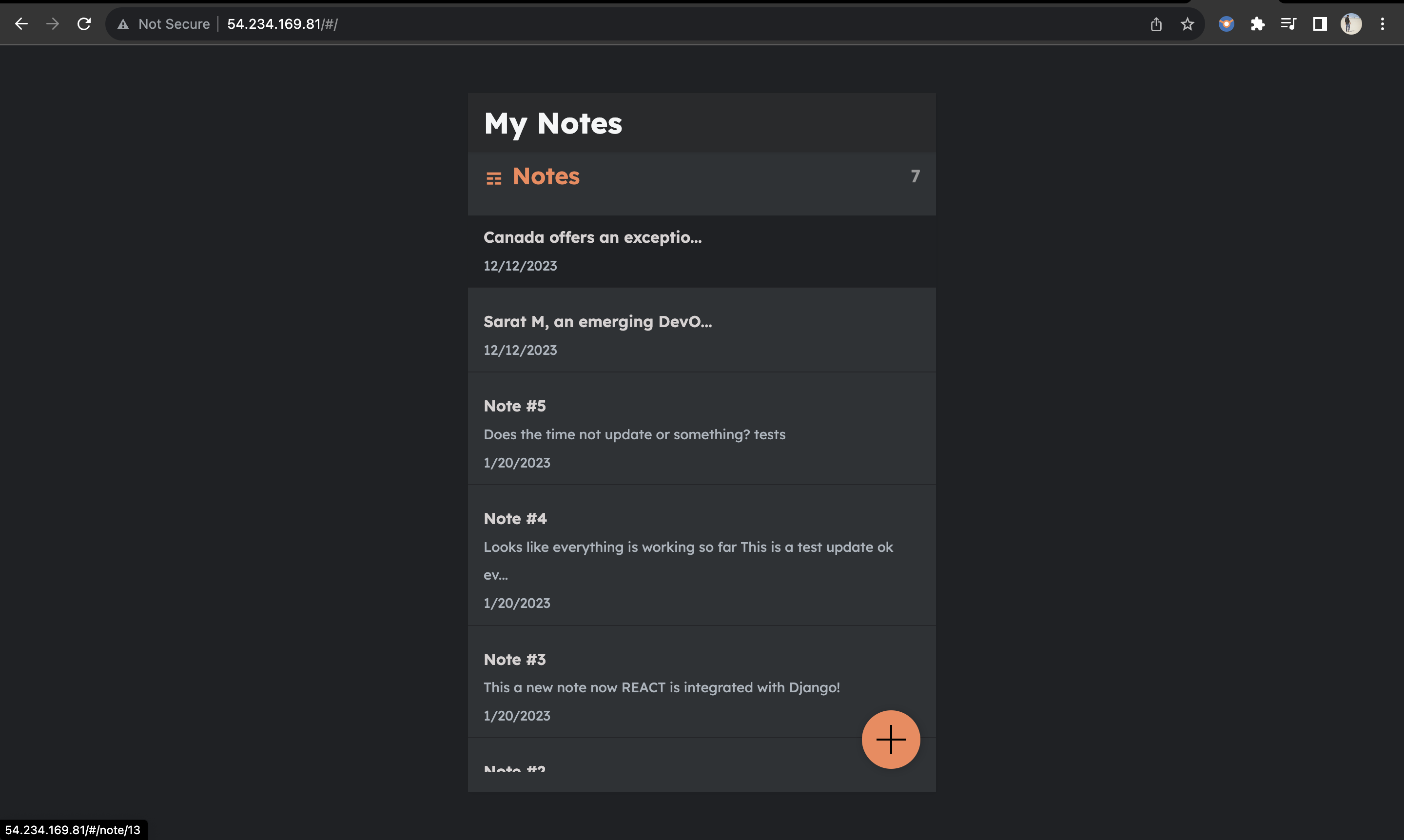
Now let us try to write and save something.
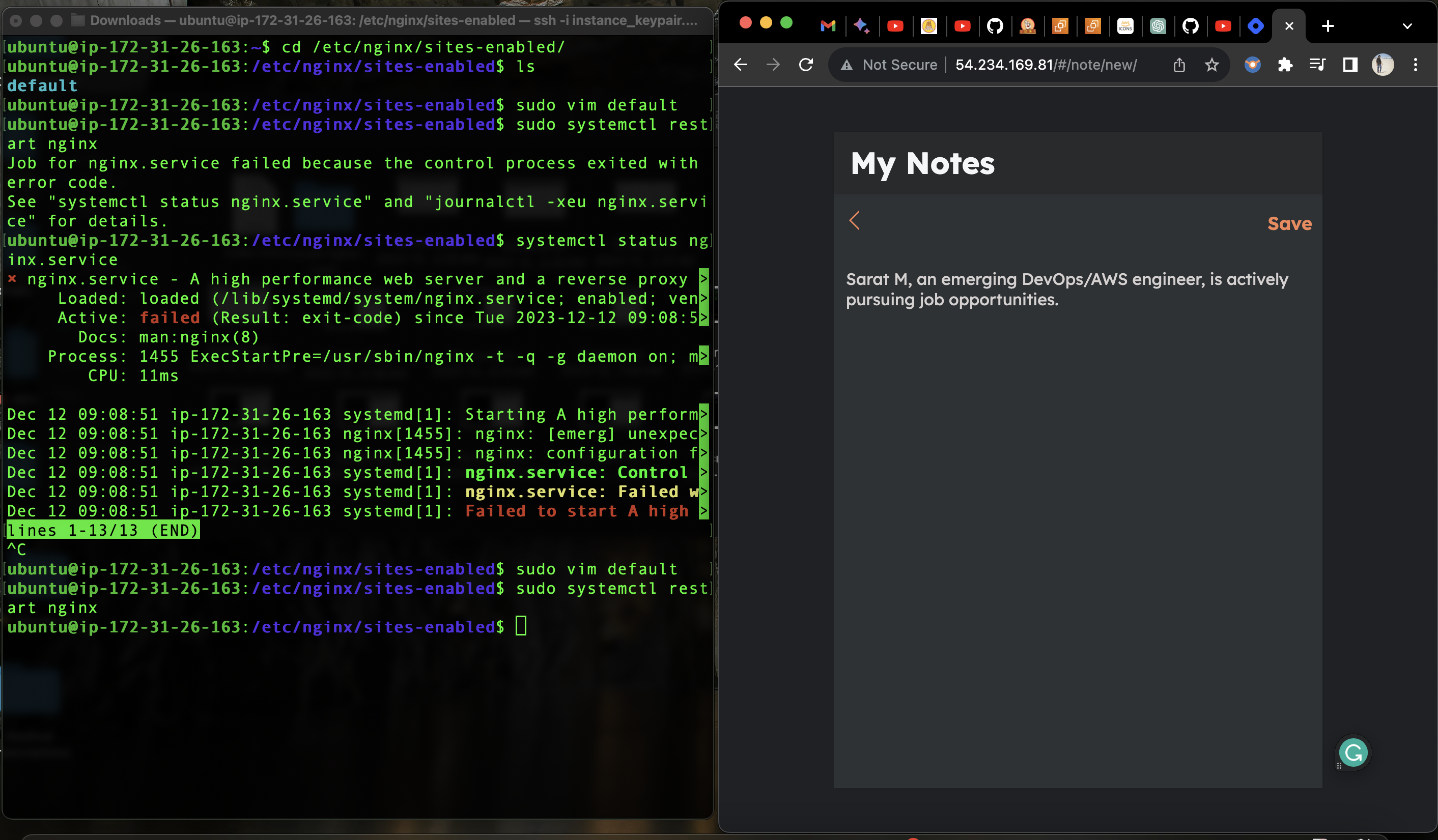
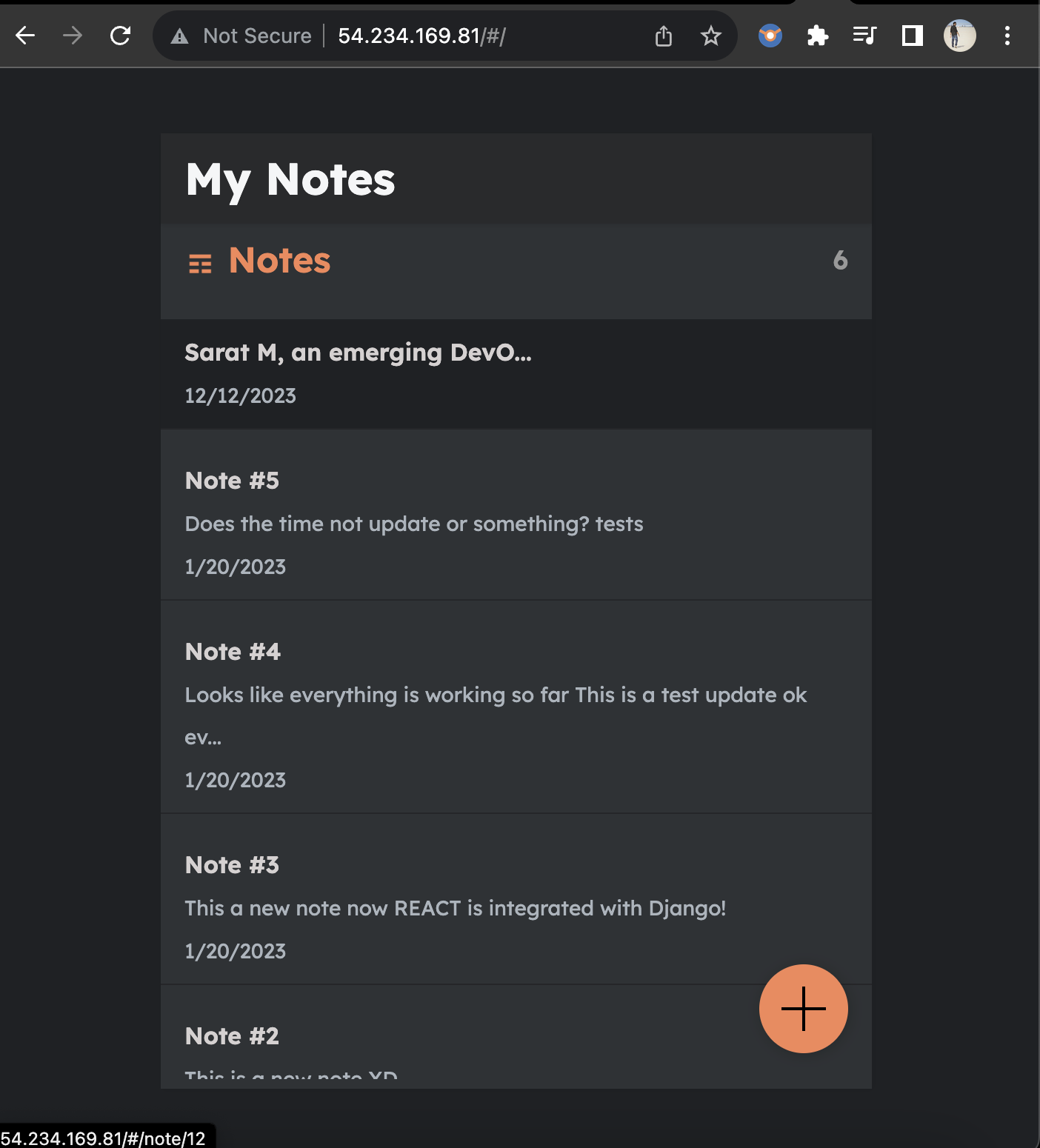
Now it gets saved, which means it got connected to the backend database. It can be deleted as well.
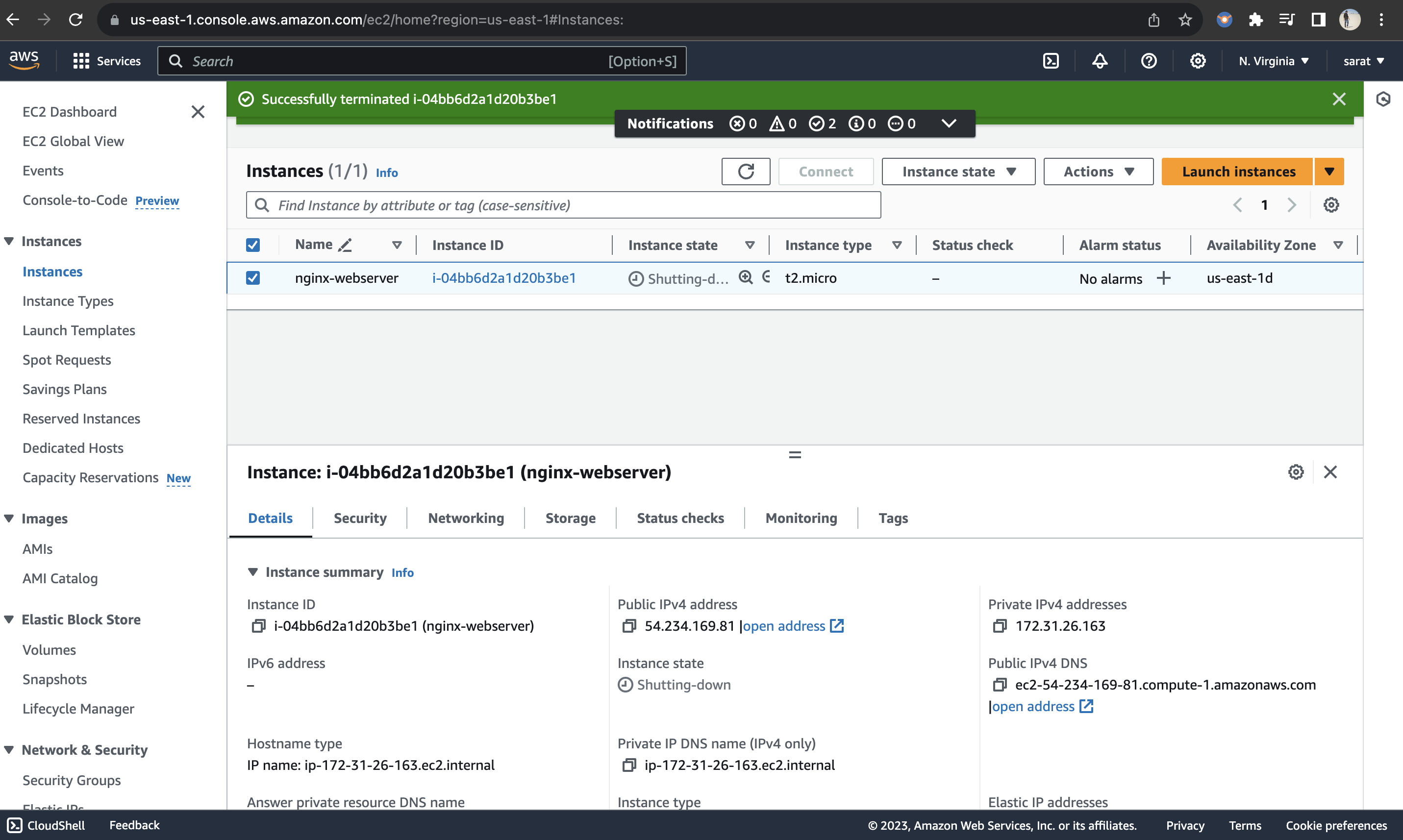
Finally, cleaning up our resources, to avoid charges. In this case, let us terminate our EC2 Instance.
********
About the author
Hey there, I'm Sarat Motamarri, an aspiring engineer mastering the art of DevOps & AWS. If you're as passionate about the cloud and open-source wizardry as I am, you're in the right place! Let's explore the skies together 🚀🔮 #CloudEnthusiast #DevOpsDreamer"
Comments
Join the discussionNo comments yet. Be the first to comment.